
Gexis Player is not tied to one display. Plug in a 10.1″ touch panel, a long bar screen or a TV, and the player lays itself out for what it finds. If the new picture is wrong, it puts things back by itself.
🔍 It recognises the screen
At every start the player compares the screen that is plugged in with the one it last kept.
- A screen it recognises is used straight away, and the player asks Keep this screen?
- Any other screen is asked about too, and the list of screens opens on its size so you can pick the model.
- On the very first start, setup is already laid out for the screen attached.
Tested on the hardware: a 10.1″ 1280 × 800 panel, a 13.3″ at 1920 × 1080, the 7.9″ bar (1280 × 400) and the 11.9″ bar (1480 × 320). Around a hundred other HDMI screens are listed as untested. DSI and DPI screens are not supported.
✋ “Keep this screen?”
Whenever a change alters the picture (a new screen, another model chosen under Settings → Display → Attached screen, or a rotation), the player restarts on it and asks Keep this screen?, with a countdown.
- A touch screen in the list shows Keep and Go back now on itself. When the player cannot tell that its touch works, the phone page offers Keep as well.
- A TV, or a screen that is not in the list, is answered on the phone page.
- No answer within two minutes, and it goes back to how it was. A screen that shows nothing cannot lock anyone out.
A change that leaves the picture as it was is kept without asking.
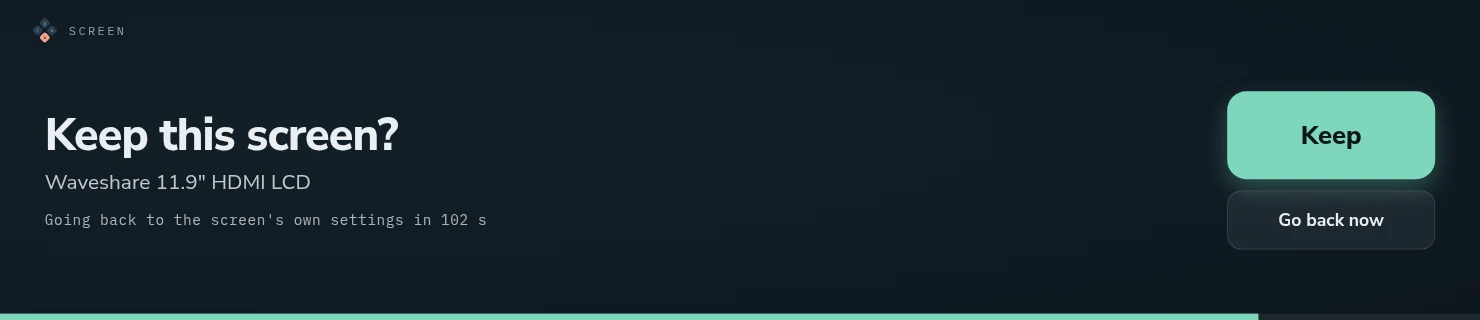
Keep this screen? on the 11.9-inch bar: Keep, or it goes back by itself.
📏 Bars: the same player, in strips
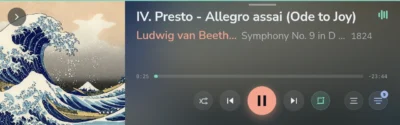
A bar screen is wide and short. The player turns it to landscape and lays everything out in strips. Now Playing fits on one line, and the library’s lists run sideways with a strip of letters to jump along them.
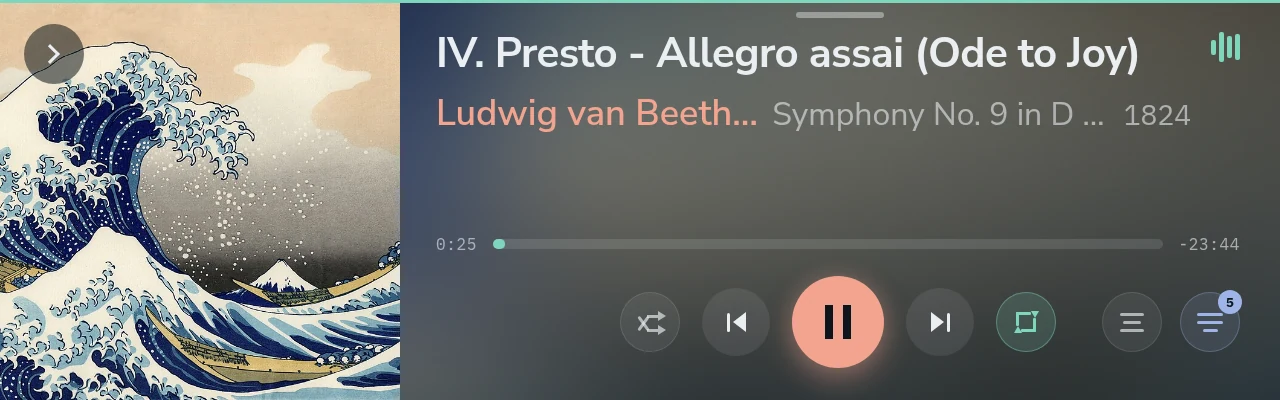
Now Playing on the 7.9″ bar: the cover on the left, the controls in one row.
Pull down from the top of any screen for the tray: Home, the visualiser and the volume. Tap below it, or push it back up, to close it.
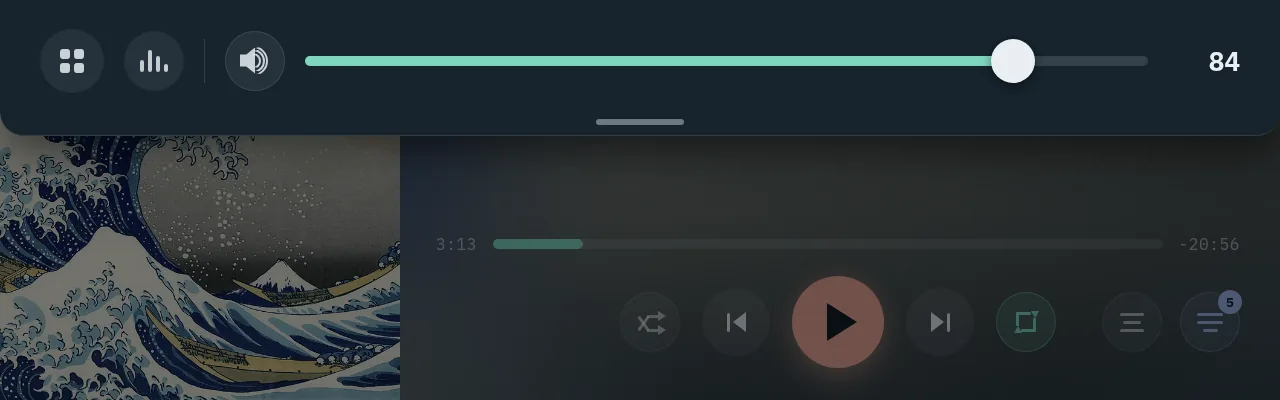
The tray on a bar: Home, the visualiser and the volume slider.
🔠 Text size, 90 to 130 %
Settings → Display → Text size makes the writing on the player’s screen smaller or larger, in steps of 5 %, with 100 % as it comes.
- The screen changes at once, with no restart.
- Home’s tiles grow with larger text. On the 10.1″ panel a tile goes from 200 × 200 to 260 × 260 at 130 %; on a bar they grow sideways only.
- Pictures, buttons and the layout keep their size, so long titles are cut short sooner at large sizes.
- A phone’s page keeps its own size.
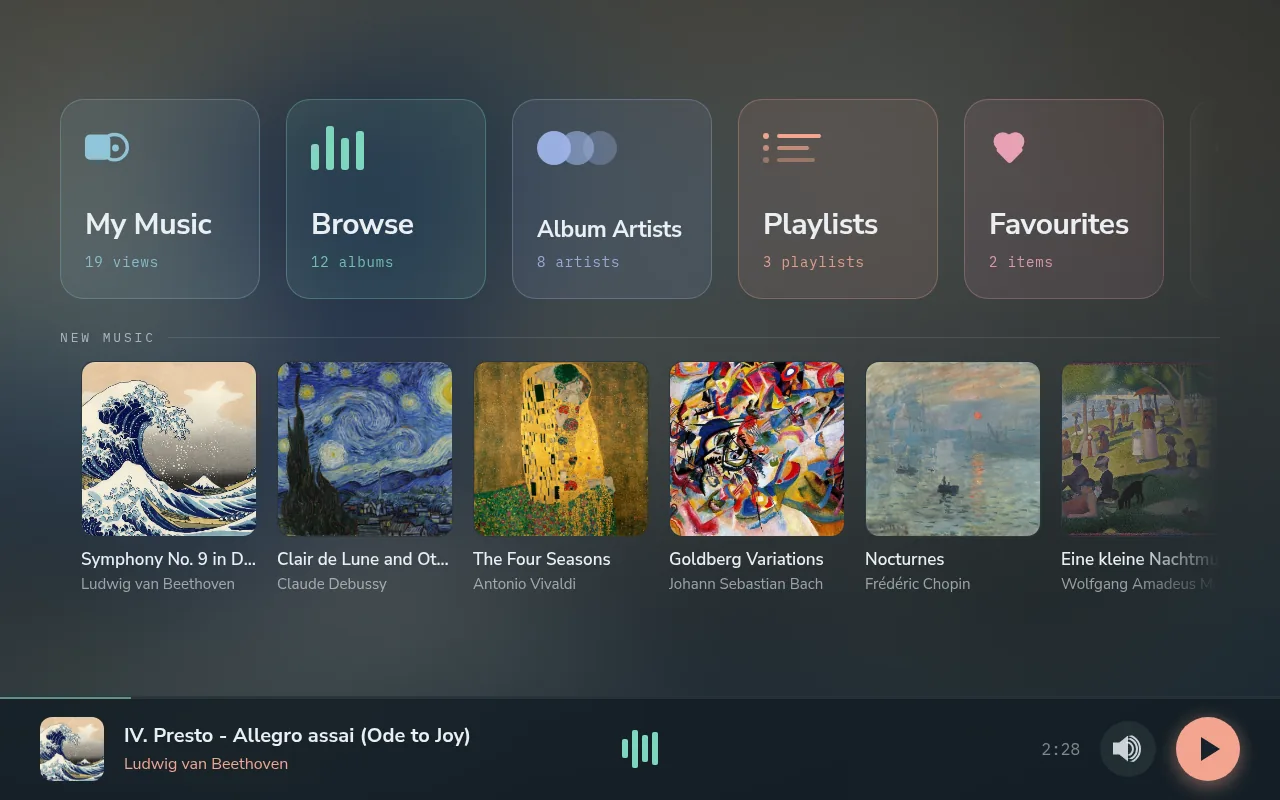
Home on the 10.1″ panel at 100 %.
📺 A TV as the screen
Connect the TV to either of the Pi 4’s HDMI ports and choose that port under Settings → Display → Screen port. The tile shows what is plugged into each port, by name, and which one carries the sound.
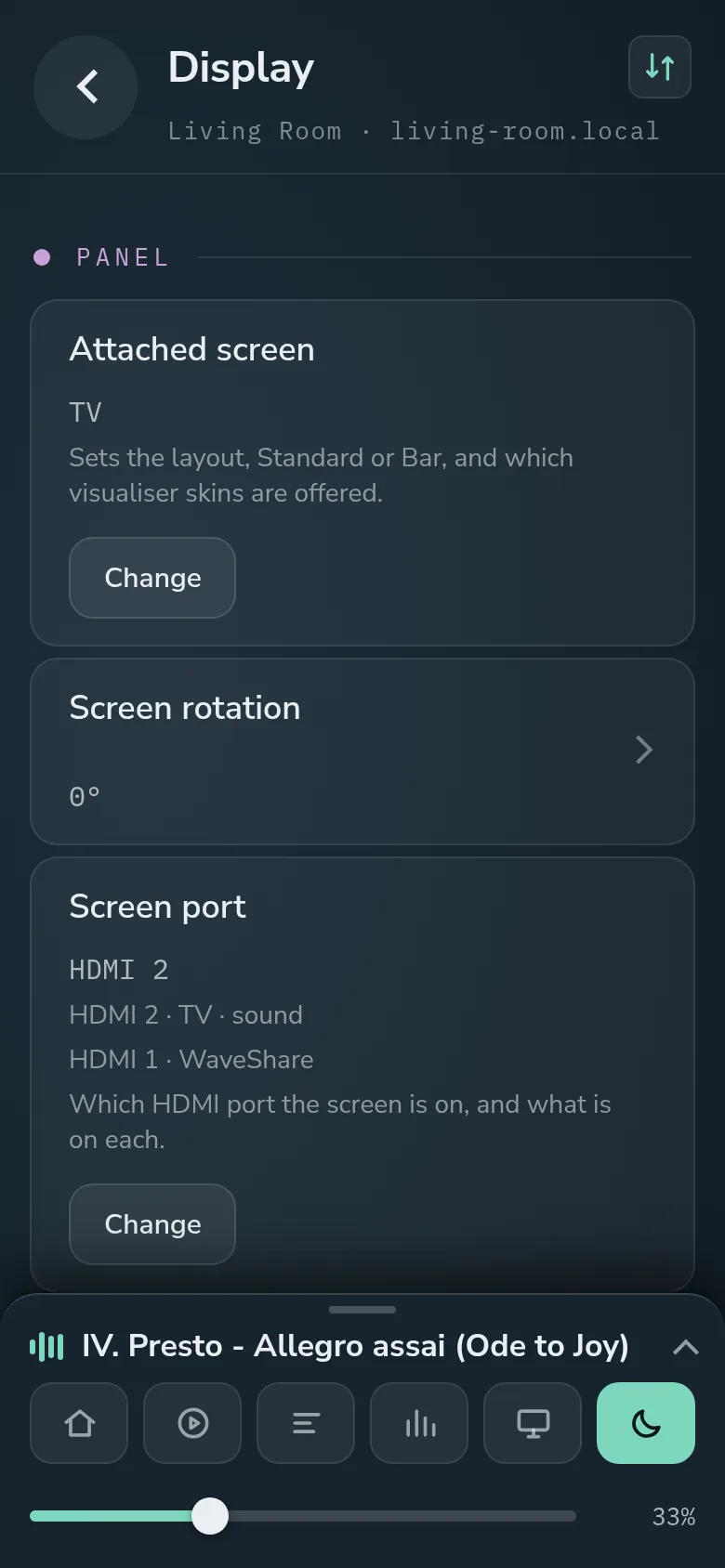
Display settings on the phone: a TV on HDMI 2 is the screen and takes the sound; the touch panel is on HDMI 1.
- The player restarts on the TV at 1920 × 1080, taken from the sizes the TV offers. A 4K TV scales it to full screen.
- A TV has no touch, so Keep this screen? is answered on the phone page.
- A touch panel left on the other port is switched off. Choose its port again to go back to it.
- If the edges of the picture are cut off, set the TV’s picture size to Just Scan or Original.
- When the TV’s port also carries the sound, display standby only blacks the picture, and the music goes on.
The small print
- Screen rotation offers 0° and 180°, for a screen mounted upside down. Portrait use is not designed.
- A bar screen moved from one HDMI port to the other is set up again at the next start, and asks Keep this screen?
Comments
0