
The player’s screen is a touch screen, but you are not always next to it. With Gexis Player your phone becomes a touchpad for that screen: move a pointer, tap, scroll, zoom and type, from the sofa.
📲 How to open it
Open the player’s page in any browser on the same network: http://gexis.local:8090, with your player’s own name in place of gexis. There is no app to install.
At the bottom of the page sits the mini player. Tap the track name, or swipe the sheet up, and it opens. Its large area is the touchpad. Swipe down to close it.
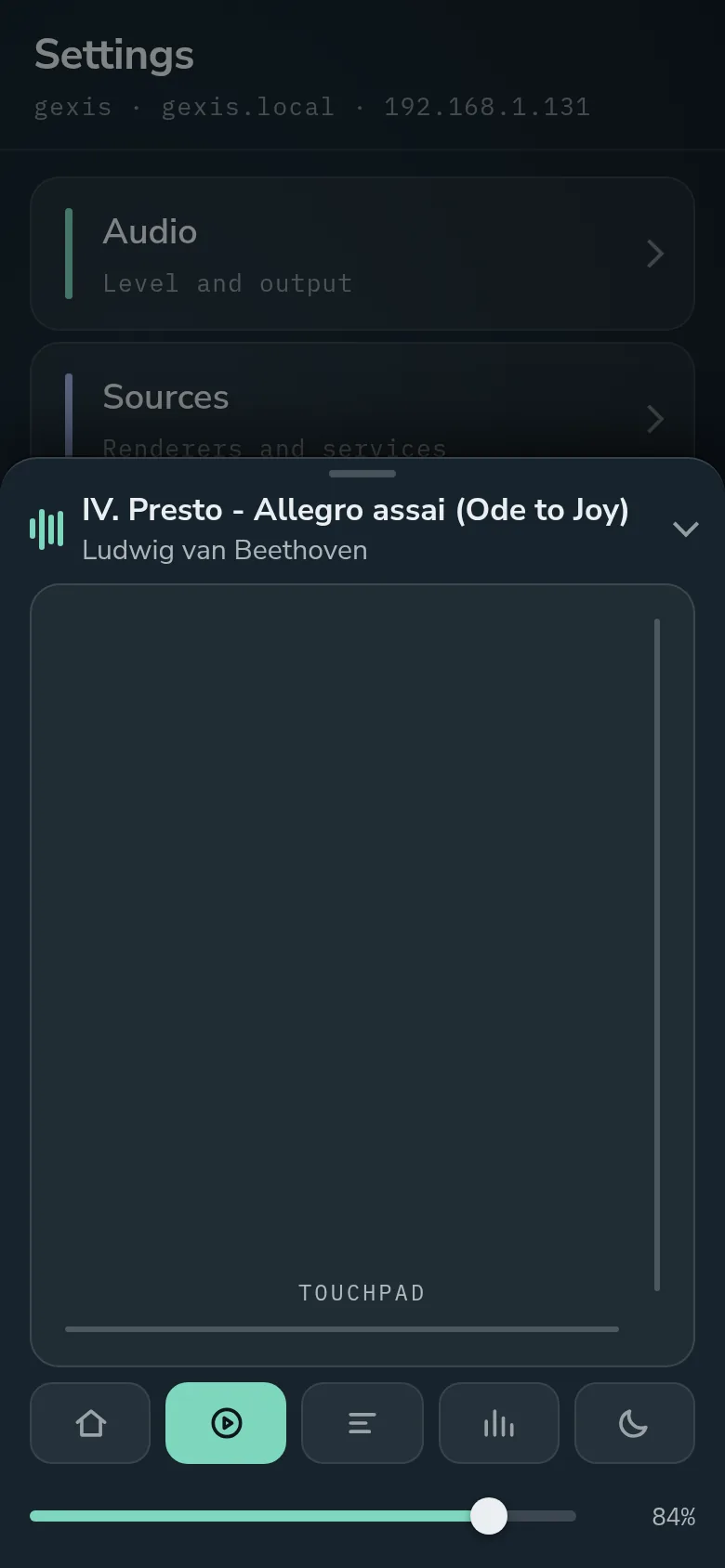
The sheet open on a phone: the touchpad, the row of buttons for the screen, and the volume.
While the sheet is open, the page behind it is dimmed. A touch outside the sheet only closes it, so nothing behind it is pressed by mistake.
👆 What your fingers do
| Gesture | Does |
|---|---|
| One finger | Moves the pointer on the player’s screen. |
| Tap | Presses what the pointer is on. |
| Two fingers, up, down or sideways | Scroll what is under the pointer. |
| One finger along the right or bottom edge line | Scrolls with one finger. |
| Pinch | Zooms the screen in or out around the pointer. |
The touchpad works like a laptop’s. It is not a map of the screen: a finger’s movement moves the pointer from wherever it is. That is why the same touchpad drives a 10.1″ panel, a wide bar screen or a TV in the same way.
Pinch zooms the screen up to three times. It zooms back out when you pinch back, or when the sheet closes, so the screen is never left zoomed for whoever looks at it next.
⌨️ Typing on the screen
Tap a text field on the player’s screen, such as a search, and the phone’s own keyboard comes up. What you type appears on the screen as you type it, and Enter submits. Text is sent as text, not as key presses, so any character and any keyboard language works.
Every setting can also be filled in straight from Settings on the phone, which is the easier place for a name, a password or a key.
🎯 The pointer and the outline
The pointer shows only while a phone is controlling. It appears with the first movement and hides after a few seconds of rest. If several phones are connected there is still one pointer; the latest touch moves it.
- Dot (the first choice): a teal dot. Over anything that can be pressed, the item is outlined in its own shape and the dot shrinks to a small dot inside the outline.
- Arrow: an arrow, with a ring at its tip over anything that can be pressed.
- Now Playing’s tabs are underlined rather than outlined.
- Only the part that shows is outlined. A button half under the mini strip is outlined down to the strip.
- A track whose Play, Queue and Add buttons are showing is not outlined itself; its buttons are.
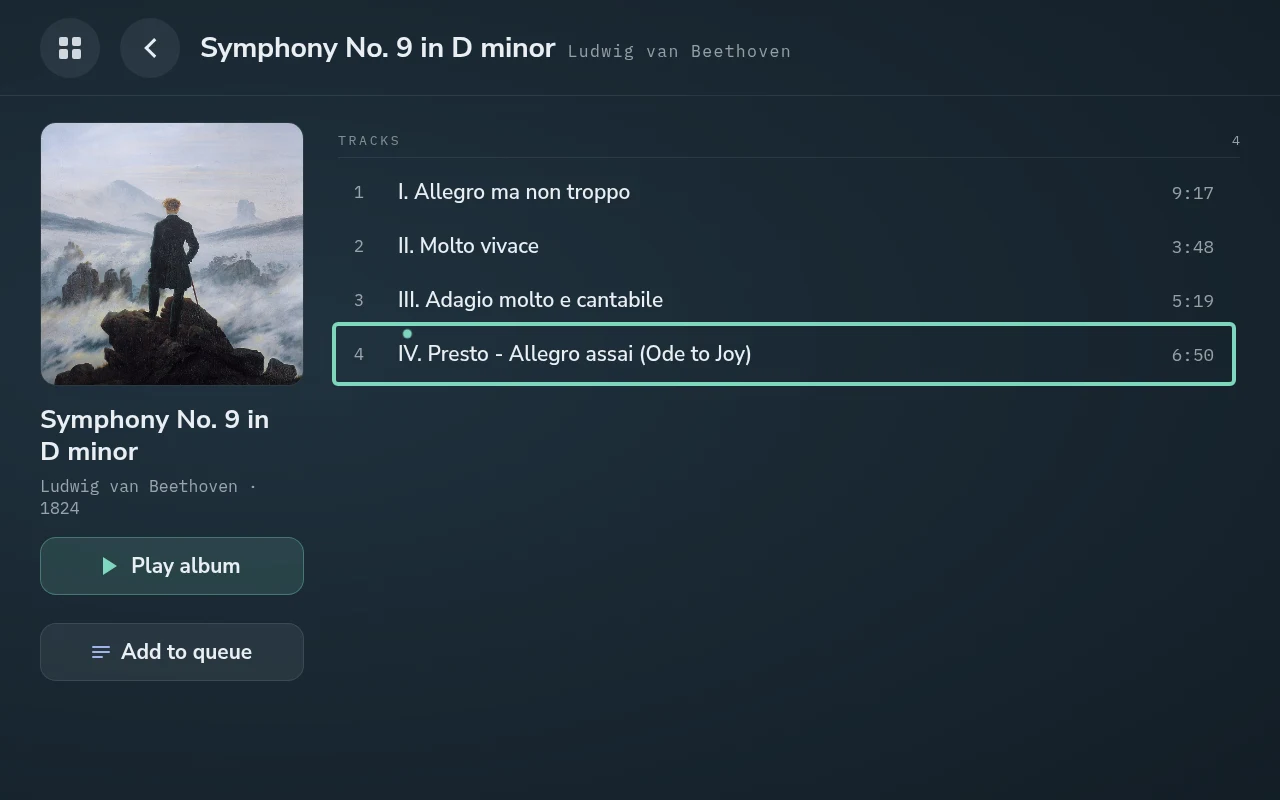
The pointer from the phone: an outline round what a tap would press, the dot small inside it.
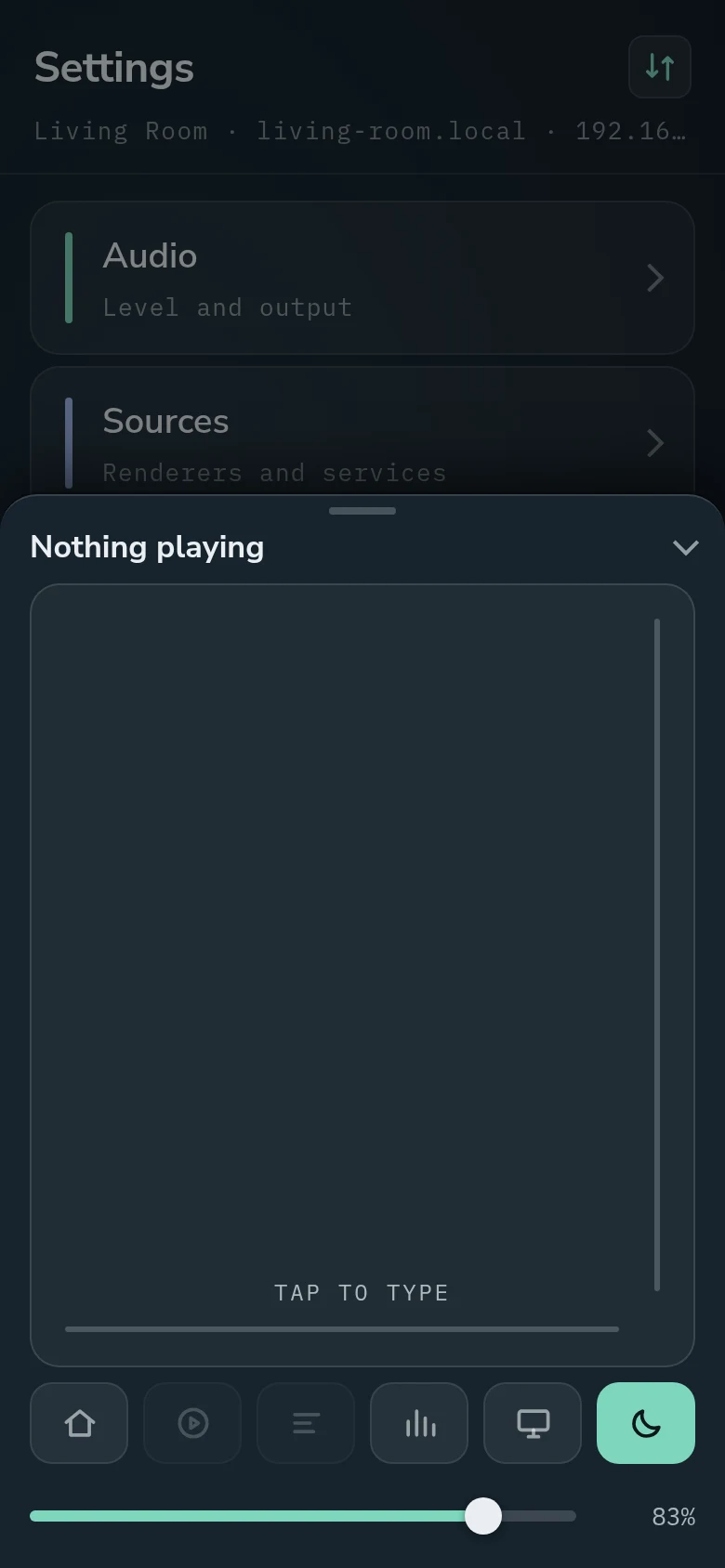
Over a text field on the player, the phone’s touchpad says Tap to type; the phone’s own keyboard then types into the player.
⚙️ Settings for it
Under Settings → Display:
- Pointer speed, 150 to 400 %.
- Pointer style, Dot or Arrow.
- Phone touchpad, which switches the touchpad off altogether.
The small print
- While the visualiser is up, a tap on the touchpad only closes it, as a tap on the screen does.
- If the touchpad stops answering, it reconnects by itself: within about a second of touching it again, or about five seconds on its own.
- Wi-Fi power saving is off on a player. On a test player, round trips from idle stayed at 10-11 ms at most with it off, where they had spiked to 85-98 ms with it on.
- The phone and the player must be on the same network. If the page is slow or drops out, a poor Wi-Fi connection usually shows on the phone first.
- The touchpad behaves the same on the bar screens.
Comments
0