
Written for the release it ships with. The screenshots use a demonstration library of public-domain works: the album covers are paintings by Hokusai, Van Gogh, Klimt, Kandinsky, Monet, Seurat, Marc, Rousseau, Hiroshige, Mucha, Gauguin and others, the portraits are of the composers, and the lyrics are Schiller’s Ode to Joy (1785). The addresses shown are examples.
Gexis Player is a music player for the Raspberry Pi with a high-quality DAC; it needs a Raspberry Pi 4 or newer, and the Pi 4 is the model it is built and tested on. It plays your Lyrion (Logitech Media Server) library, Spotify Connect, Bluetooth and Plexamp, one at a time, and switches to whichever one you start. You control it from its own touch screen (the panel), from any phone or computer on the same network (the phone page), or from the apps you already use: a Lyrion app, Spotify, or your phone’s Bluetooth.
Contents
- The panel at a glance
- Now Playing
- The library
- Lyrion’s own menus (Extended navigation)
- When another source takes over
- The idle screen and the visualiser
- The phone page
- Bar screens
- Settings
- Updates
1. The panel at a glance
The panel shows one of two places at a time:
- Now Playing: the track, its cover and the controls, whenever something plays.
- The library: your music, starting at Home.
The mini strip along the bottom of the library always shows what is playing; tap it to go back to Now Playing. On Now Playing, the Home button (bottom left) opens the library at Home, and the Minimise chevron (top left) goes back to exactly where you were in the library.
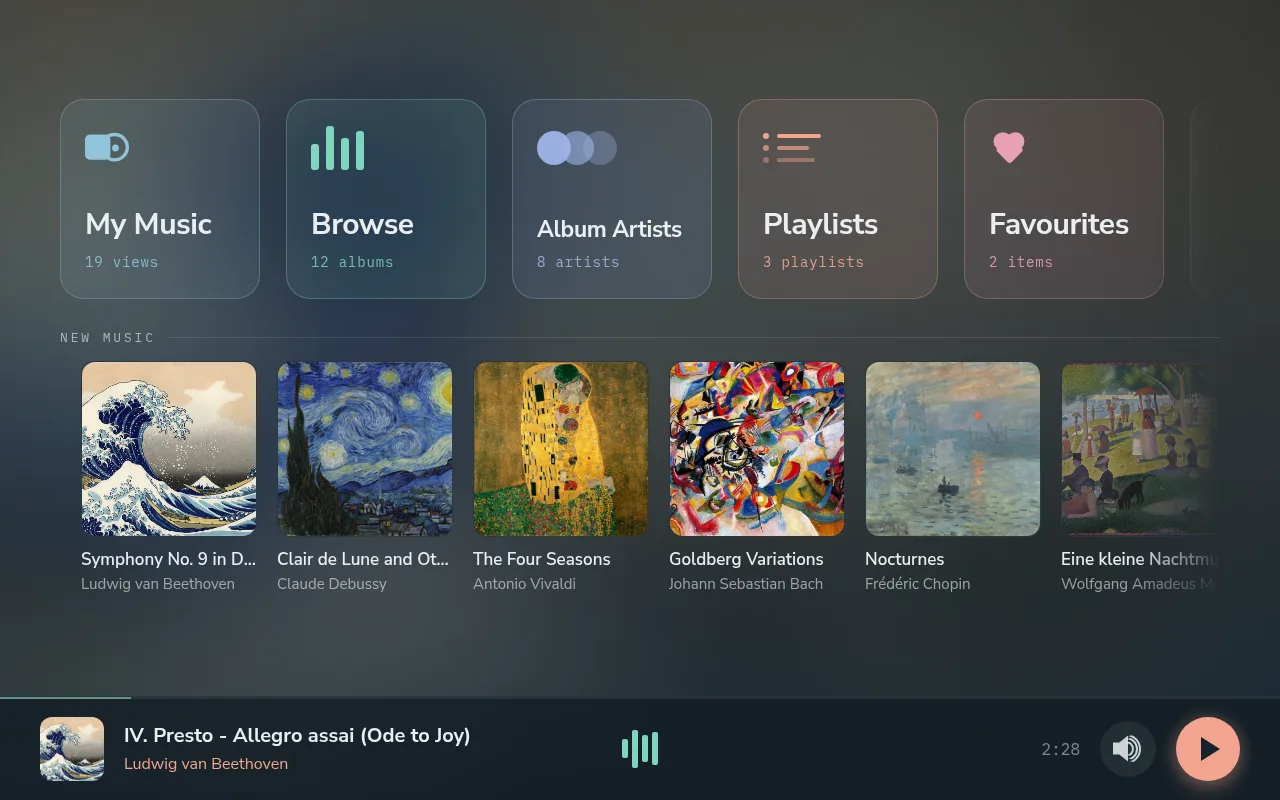
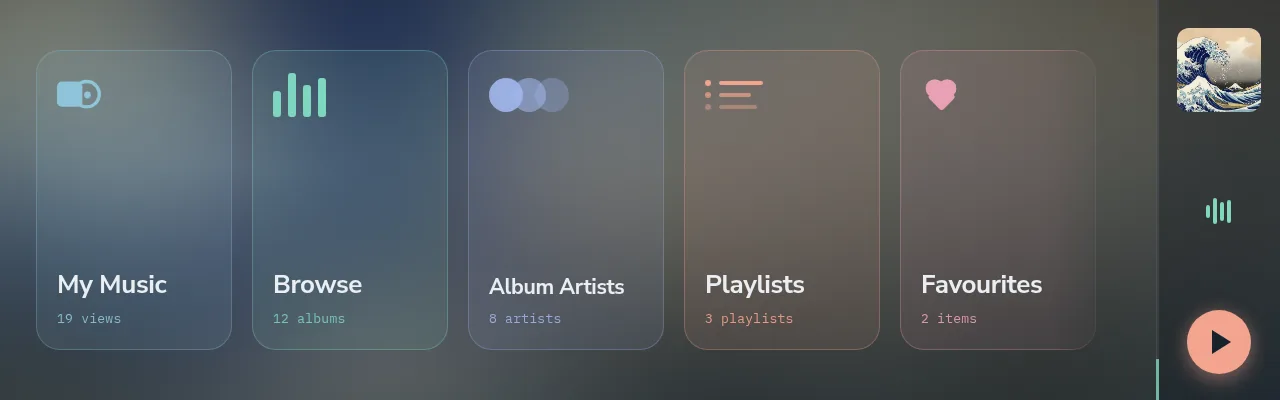
Home: the cards along the top, the newest albums underneath, and the mini strip at the bottom. The row of cards scrolls sideways.
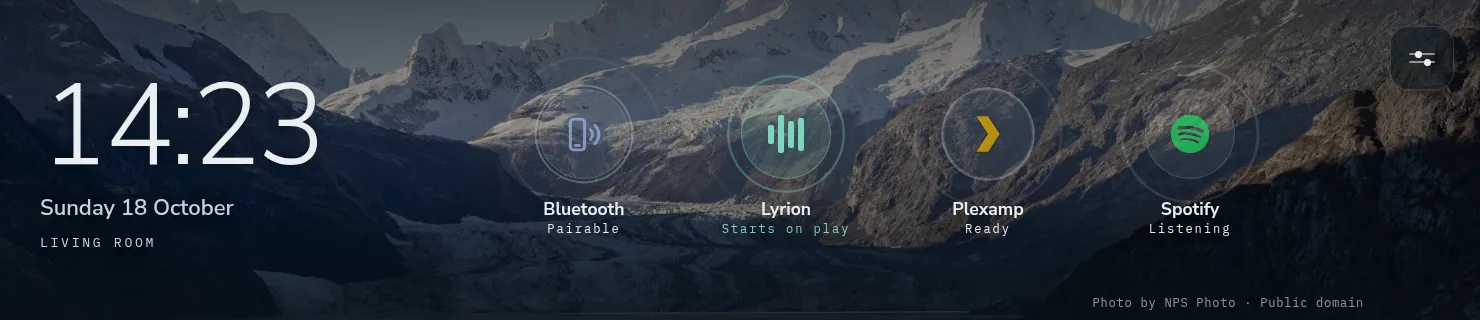
With the Lyrion client switched off there is no library, and the panel’s home is the waiting screen: the clock, the date and the player’s name over the same picture as the idle screen, and each source waiting to be played to pulsing at the foot – its mark, its name and its state, as under the library. Start music from a phone and the panel moves to Now Playing. Settings is the button in the top right corner.
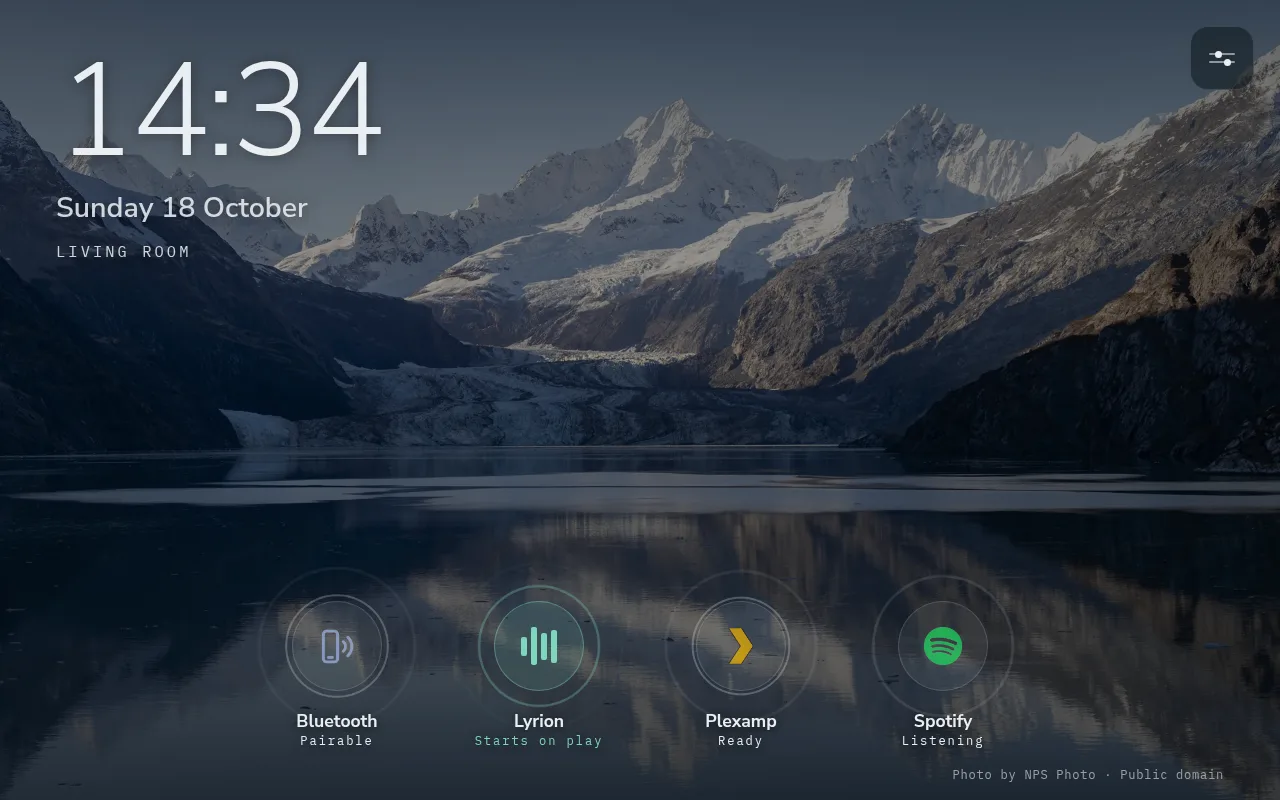
The waiting screen, with the Lyrion client off: a public-domain wallpaper, the four sources, and the picture’s credit at the foot.
Everything on the panel works by touch: tap to open, swipe to scroll. Lists with many entries have a letter rail down the right-hand side; tap a letter to jump there.
2. Now Playing
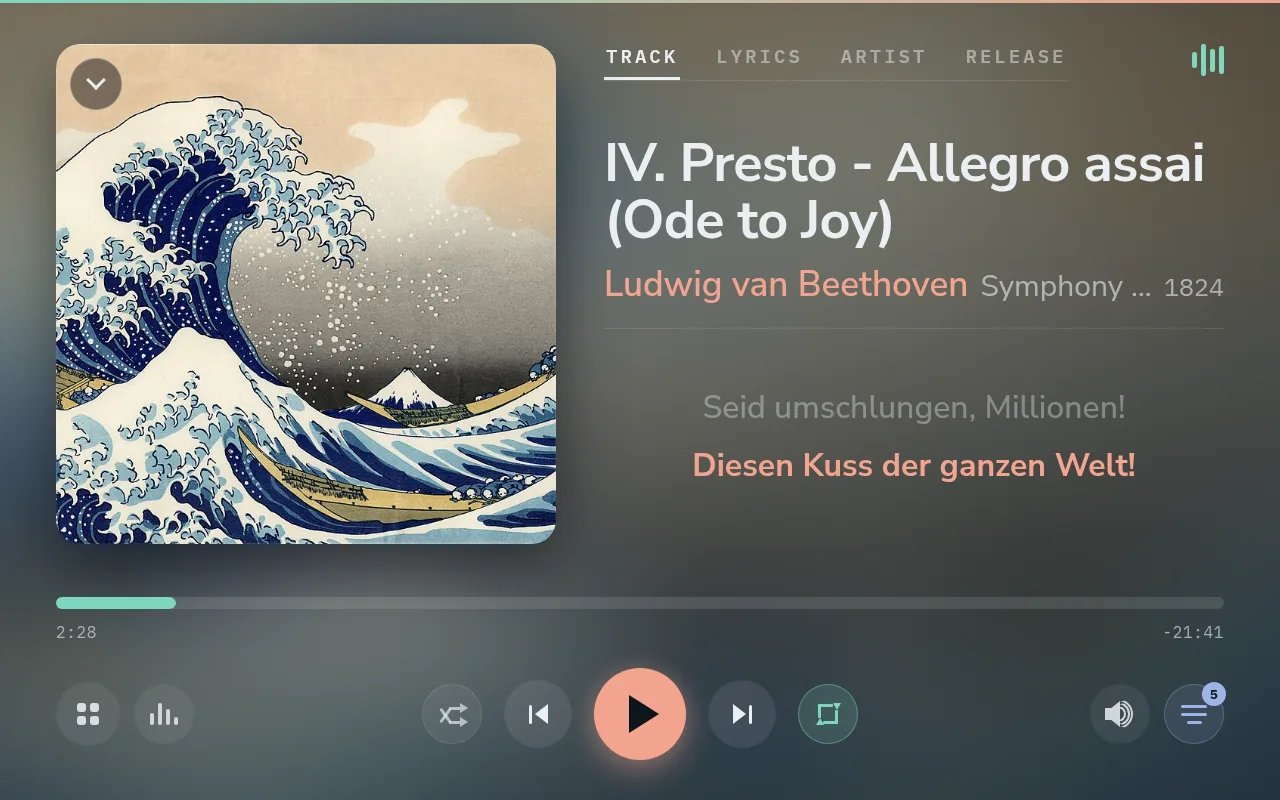
| Part | What it does |
|---|---|
| Cover | The album’s art. With none from the source, the player looks one up. |
| Chevron (top left) | Minimise: back to the library where you left it. |
| Tabs | Track, Lyrics, Artist, Release (below). |
| Visualiser button (top right) | Shows the visualiser (section 6). |
| Progress bar | Elapsed and remaining time; tap to move through the track where the source allows it. |
| Home (bottom left) | The library, at Home. |
| Shuffle, previous, play/pause, next, repeat | As offered by the source playing. A source that cannot do something has that button greyed out. |
| Volume (bottom right) | Opens the volume drawer. |
| Queue (bottom right) | Lyrion’s queue, with the number of tracks still to come. |
Track shows the title, artist, album and year, and, when the song has synchronised lyrics, the current line and the next one. Tap the artist’s name to open their page in the library.
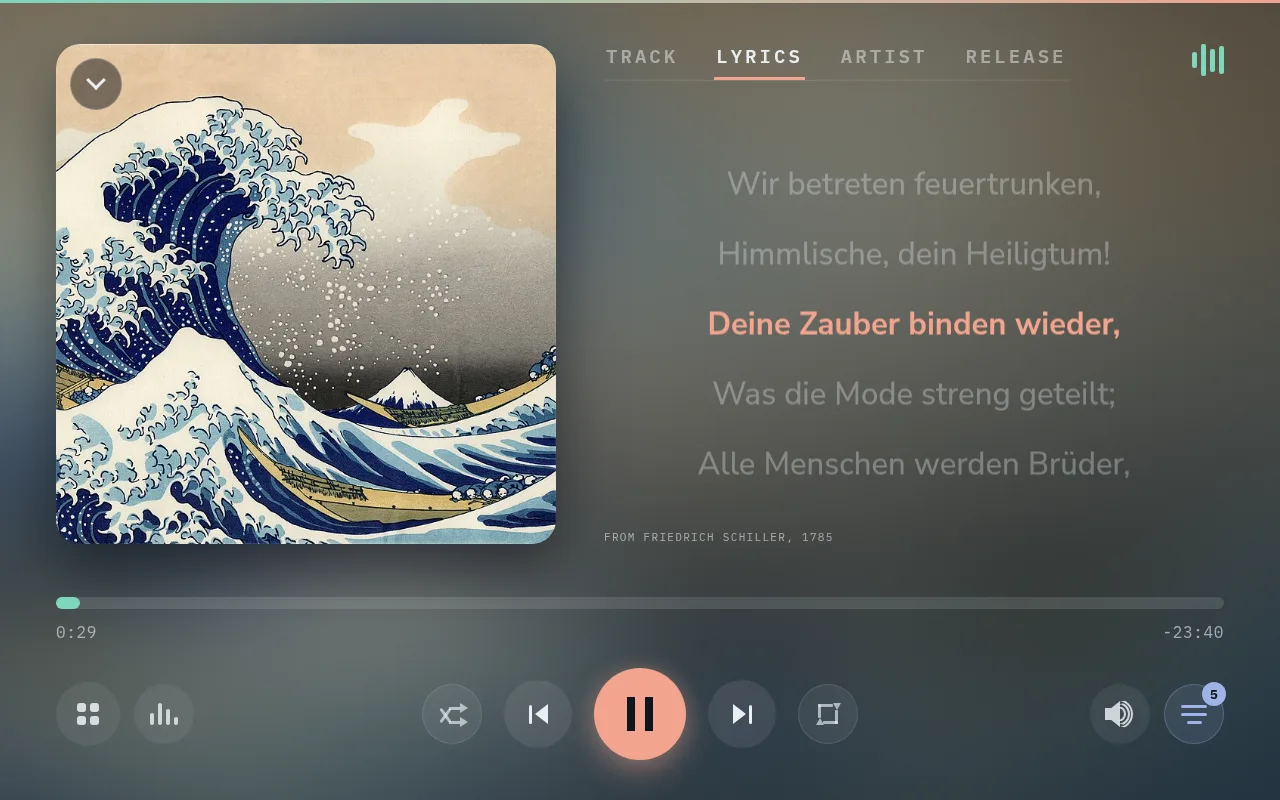
Lyrics shows the whole text, following the music when the lyrics are synchronised.
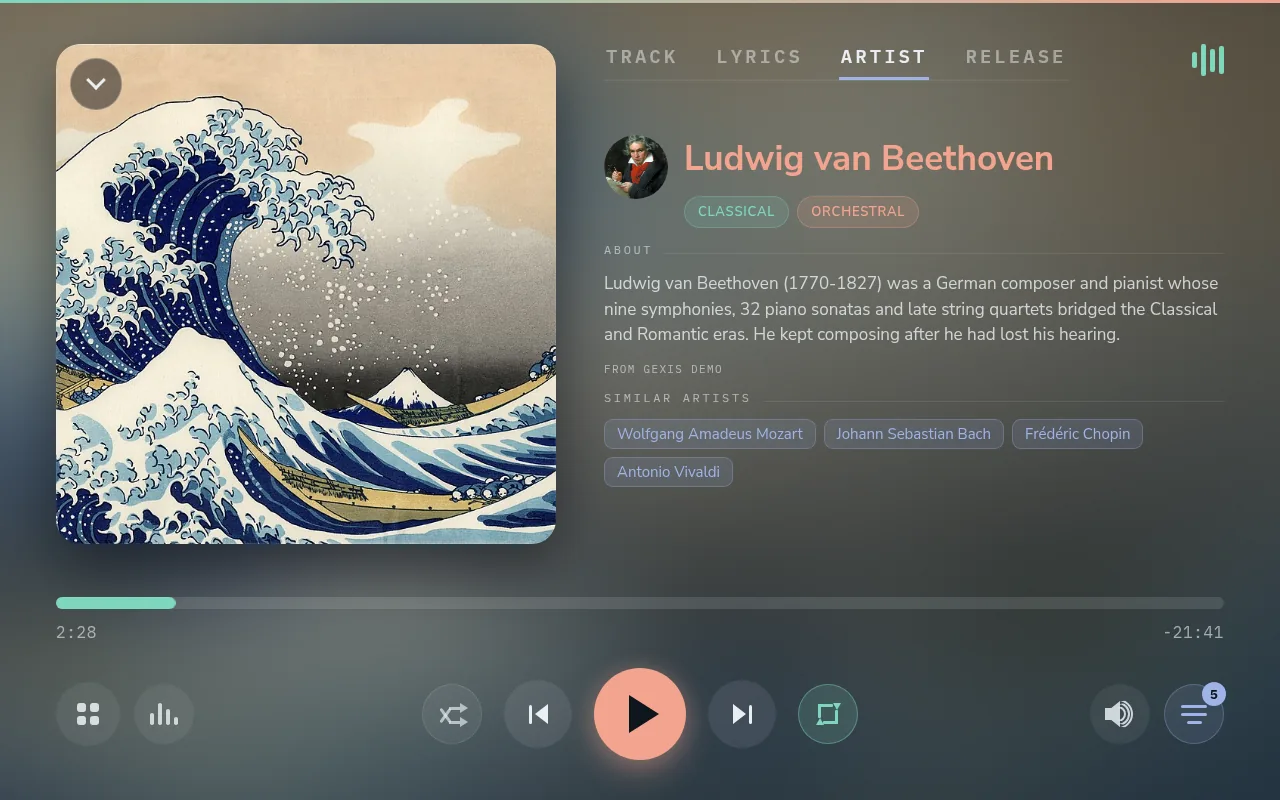
Artist shows a short biography, the artist’s genres and similar artists. Tap the artist’s name for their page in the library, and a similar artist the library has for theirs. On Track and Release, the album’s title opens the album’s page.
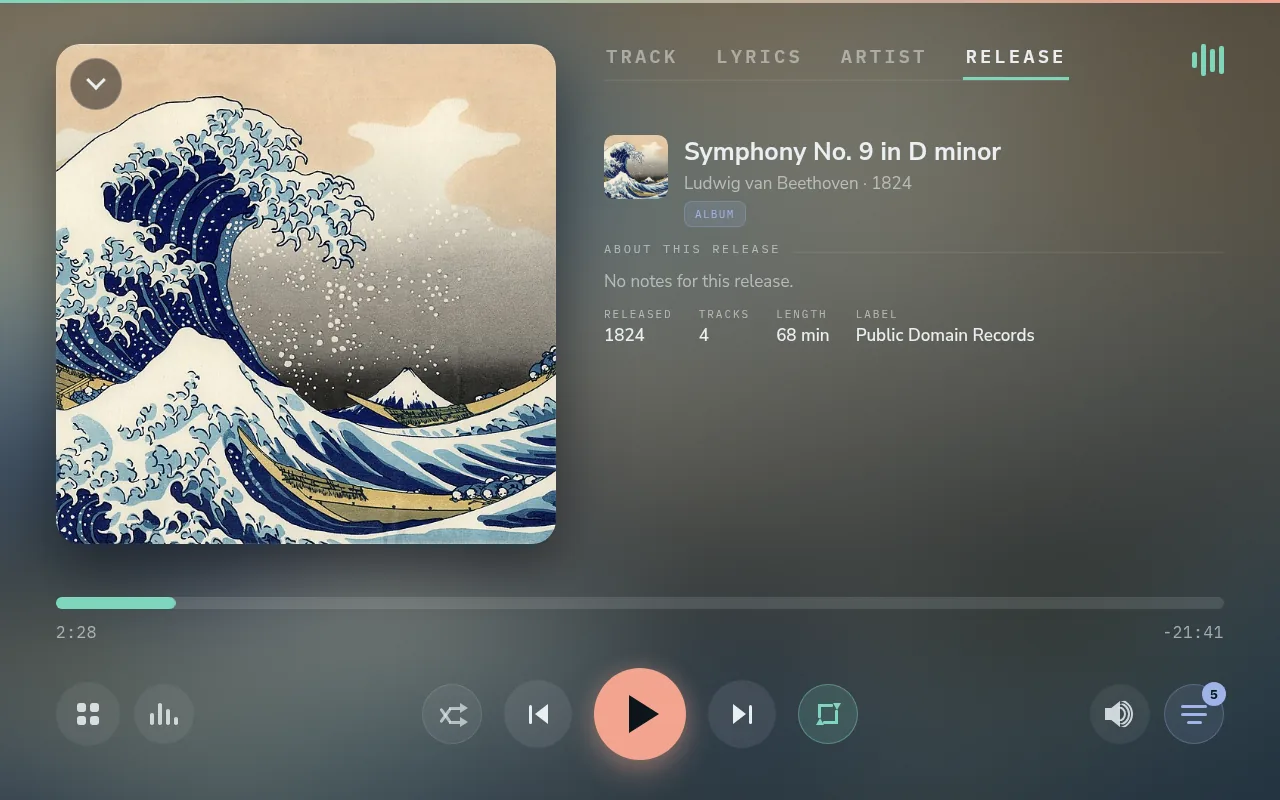
Release shows the album’s year, number of tracks, length and label, with a note about the release when one is available.
The queue
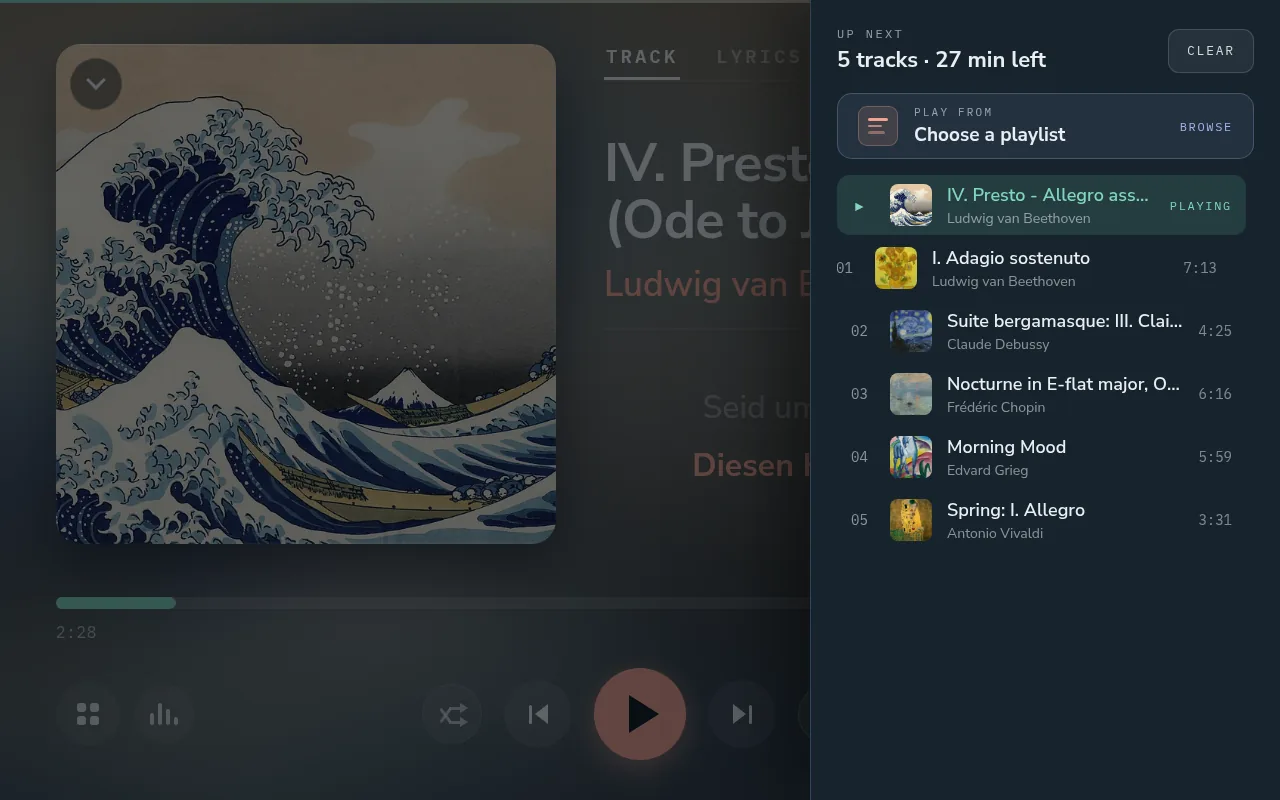
The queue lists what Lyrion will play next, with the time left. Tap a track to play it; Clear empties the queue; Play from starts a playlist.
The volume drawer
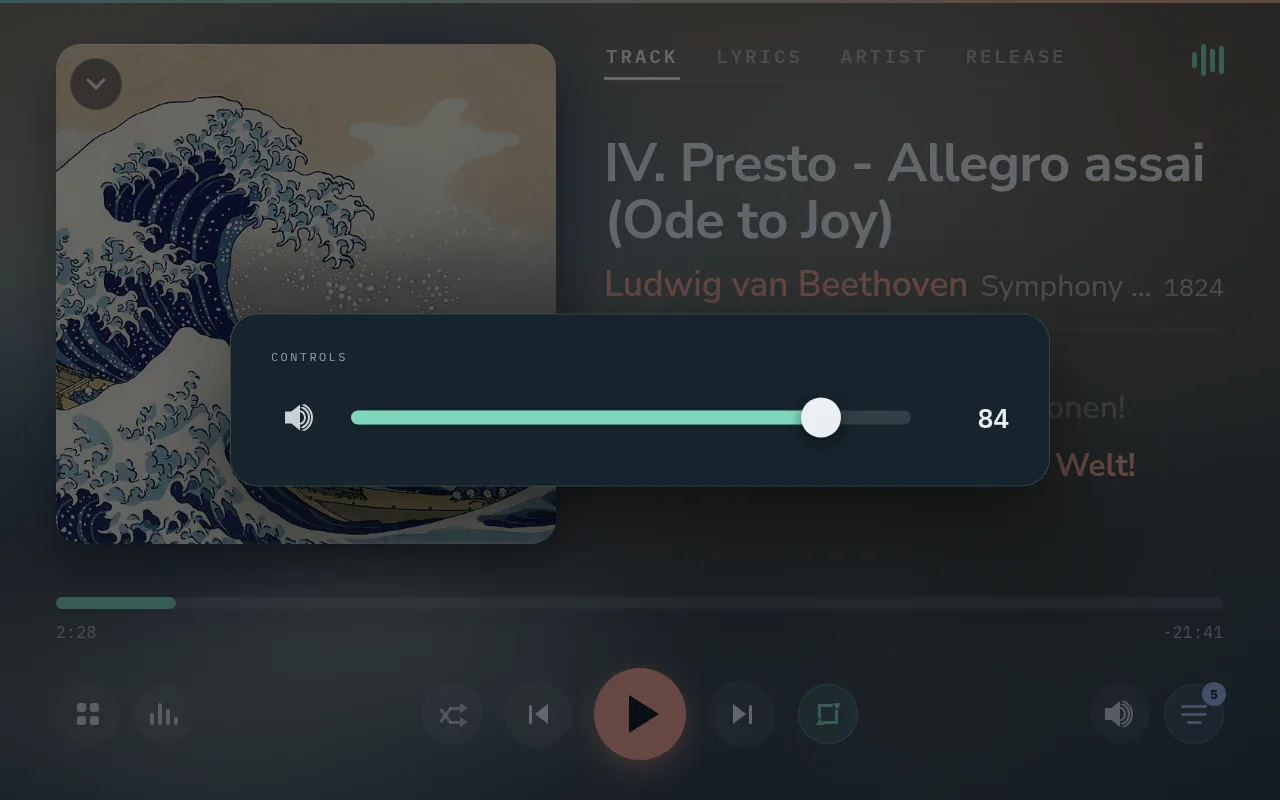
Drag the slider or tap along it. The drawer closes by itself after a few seconds, but stays open while the phone’s pointer rests on it. A change made elsewhere (a phone, a Lyrion app) can open the drawer too (Settings → Display → Show volume when changed elsewhere); a drawer opened that way ignores touches for a moment, so a tap meant for what was under it does not set the level.
With Volume set to Fixed, the player always plays at full level for an amplifier that sets the volume; the button then shows a padlock and the drawer explains why. Maximum volume and Spotify’s Starting volume do not apply in Fixed, and their rows are hidden. Changing the volume type while music plays stops playback, and the sources reconnect on the new type, so the level never jumps mid-track; the source that comes back starts no louder than its Starting volume.
3. The library
The library is your Lyrion server’s music. Home offers:
| Card | Opens |
|---|---|
| My Music | Lyrion’s own library views (only with Extended navigation, section 4). |
| Browse | Three columns: artist, album, tracks. |
| Album Artists | Every album artist, with their portrait. |
| Playlists | Your Lyrion playlists. |
| Favourites | Your Lyrion favourites (Extended navigation). |
| New Music | The newest albums (also the row under the cards). |
| Radio | Lyrion’s radio directory. |
| Apps | Lyrion’s apps, such as streaming services (Extended navigation). |
| Settings | The player’s settings (section 9). |
Browse
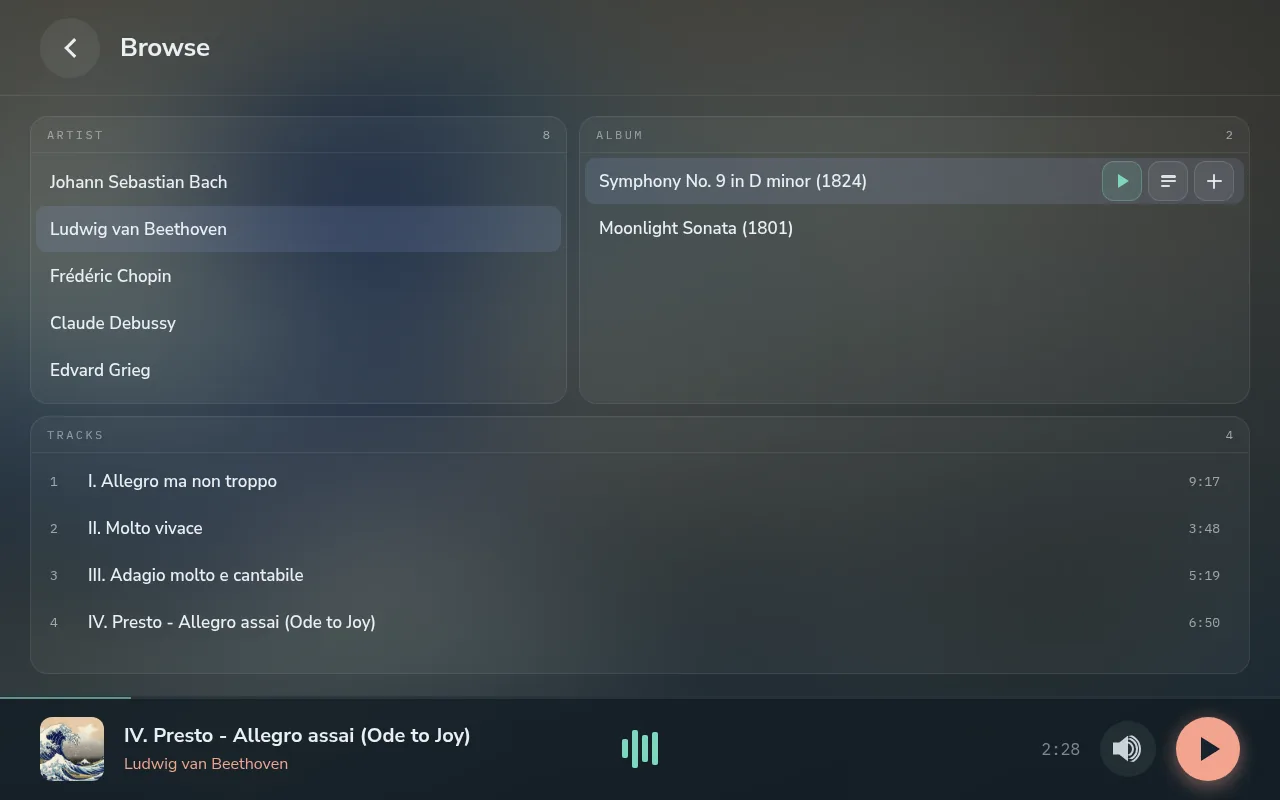
Pick an artist, then an album, then a track. A tap on a row shows its actions, and the row turns teal while they show:
- Play plays it now;
- Add to queue adds it to the end;
- + adds it to a playlist.
Album Artists and the artist page
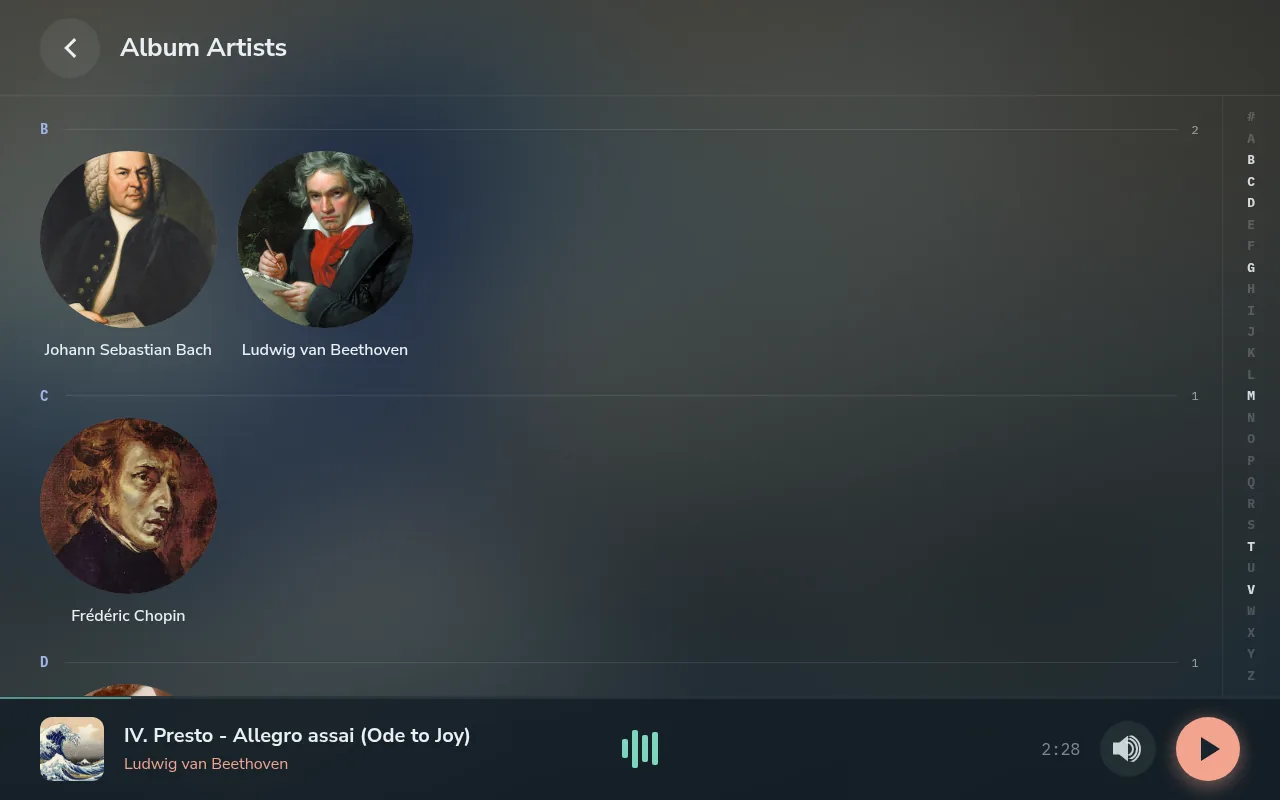
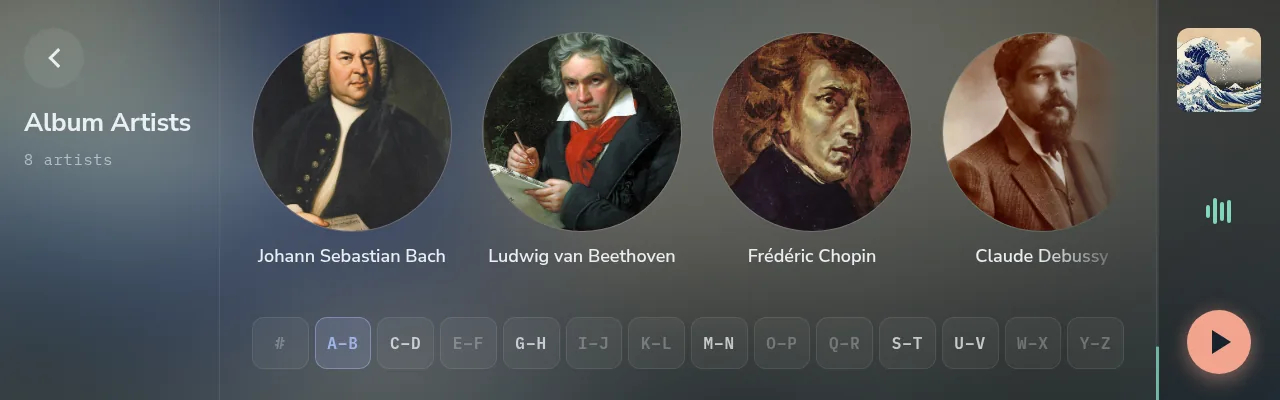
Artists are grouped by letter; tap a letter on the rail to jump.
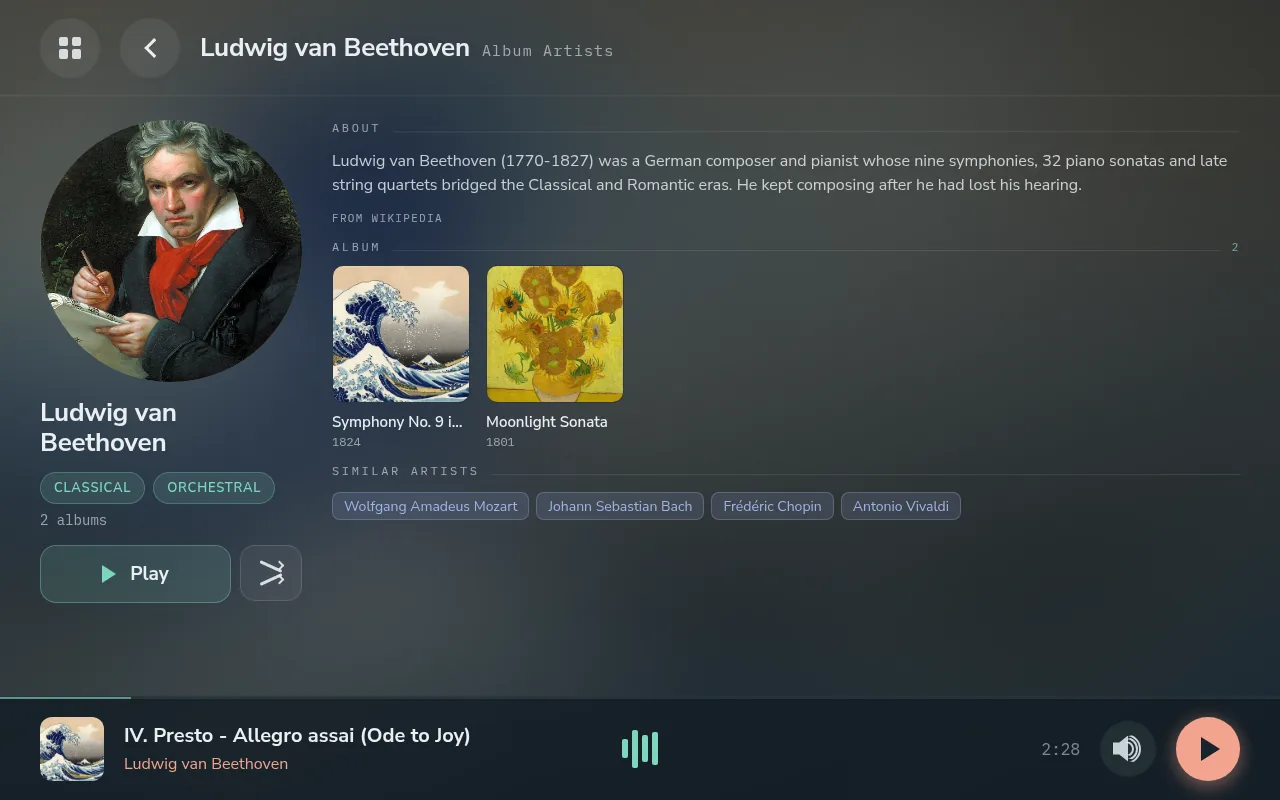
An artist’s page shows their portrait, genres and albums. It also has Play and Shuffle for everything by them, a biography, their Popular tracks and similar artists; a similar artist the library has opens their page. A tap on a Popular track shows its actions, as anywhere else.
Album page
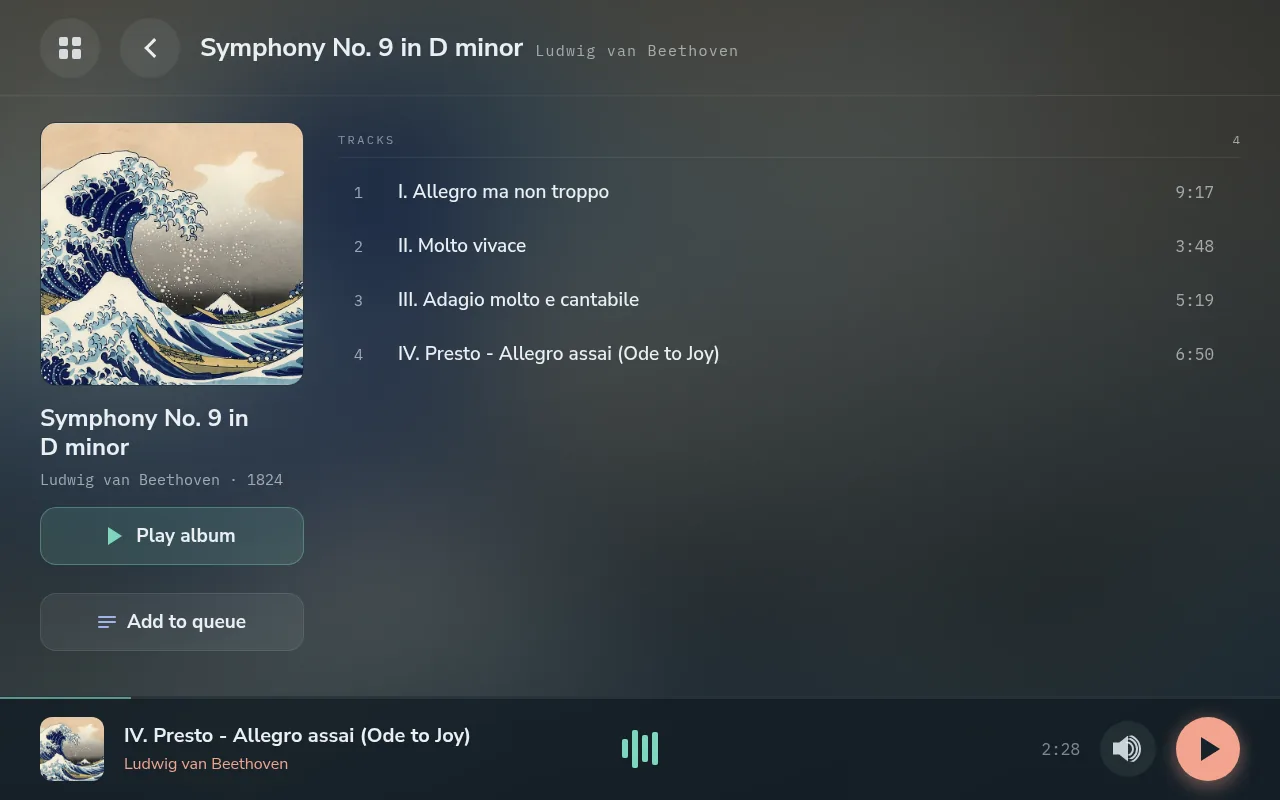
Play album or Add to queue, and the tracks with their lengths. Tap a track once to show its actions, twice to play it.
Playlists
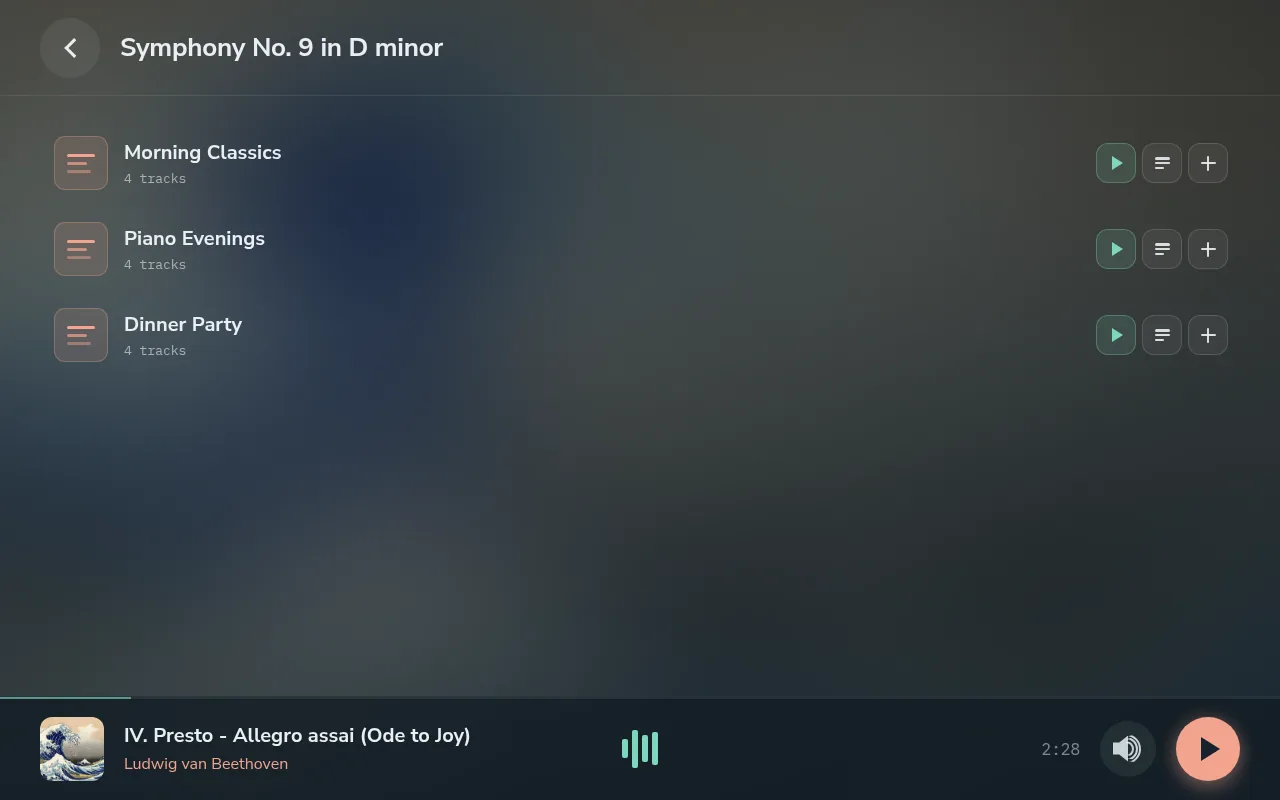
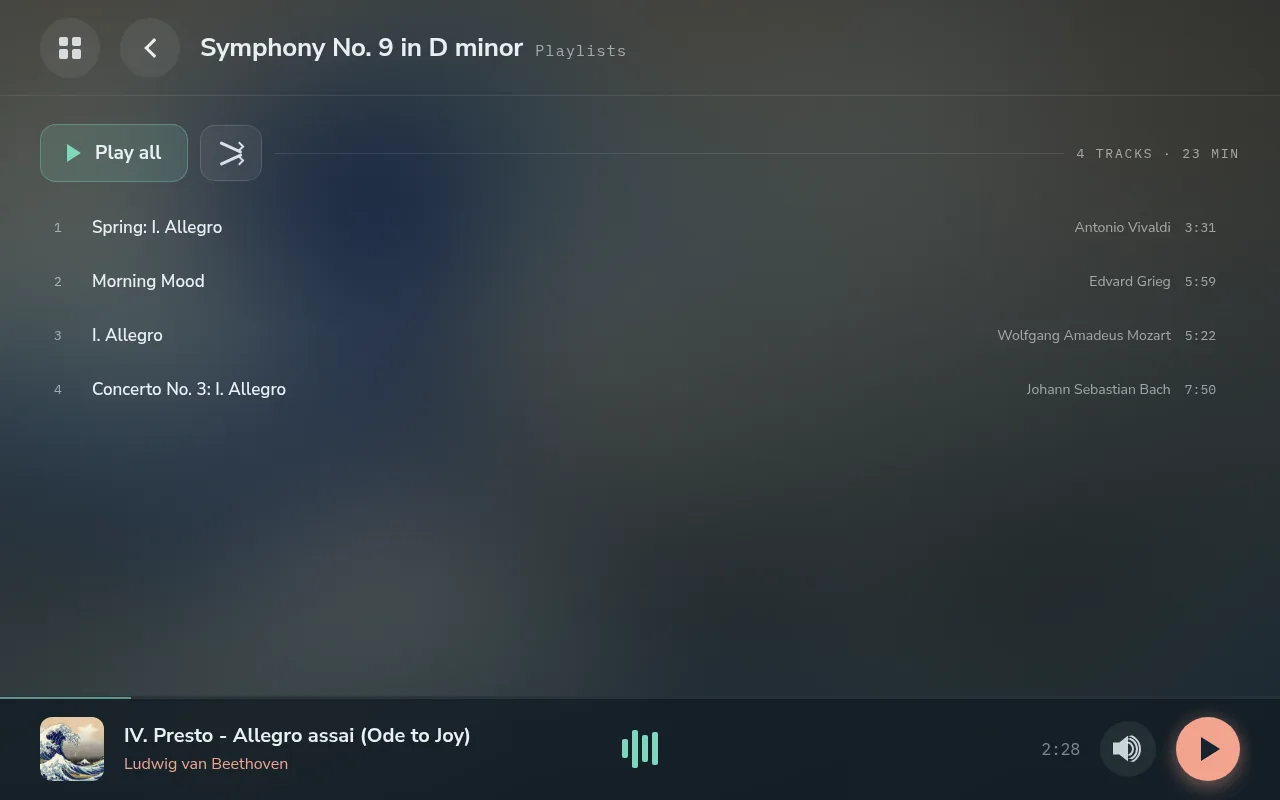
Radio
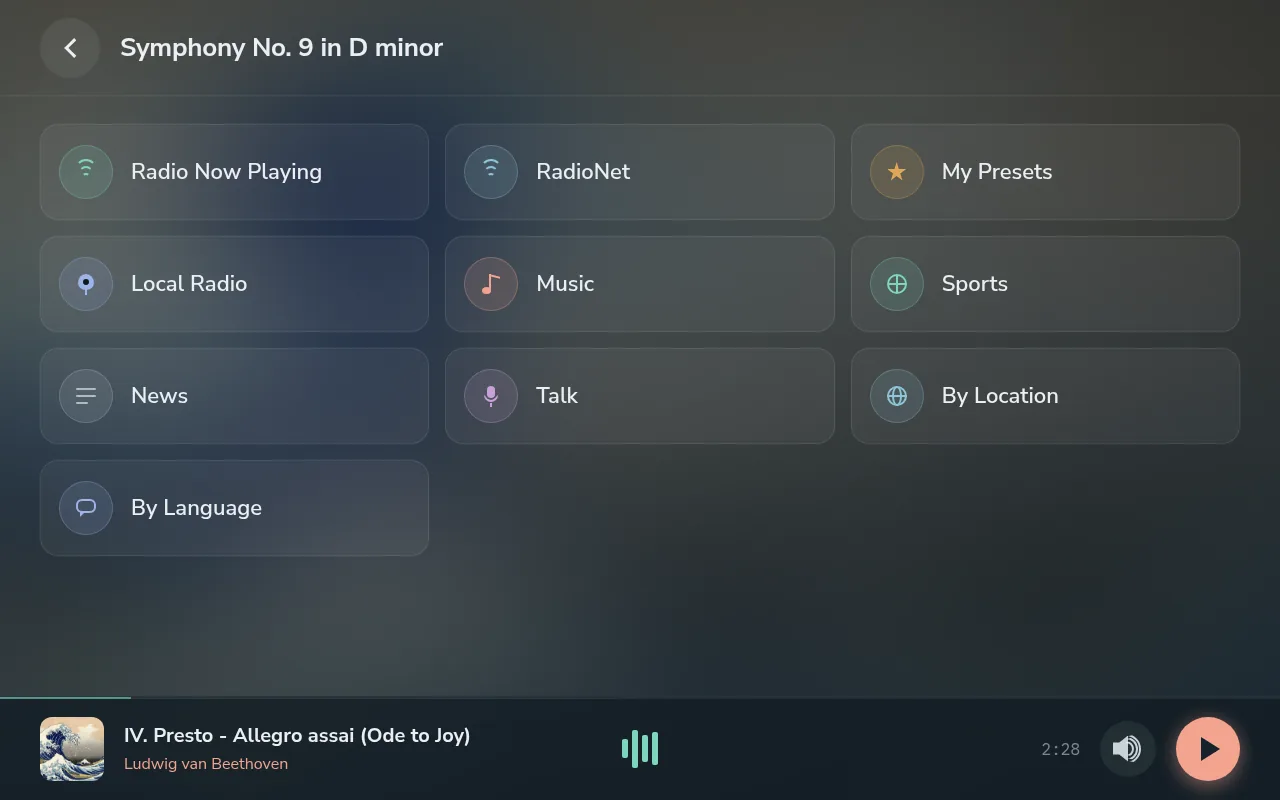
Lyrion’s radio directory, by category. Tap a station once to show Play and Add, twice to play it.
4. Lyrion’s own menus (Extended navigation)
Choose Extended in Settings → Sources → Lyrion Client → Navigation and Home gains My Music, Favourites and Apps: everything your Lyrion server offers, including the apps it has installed.
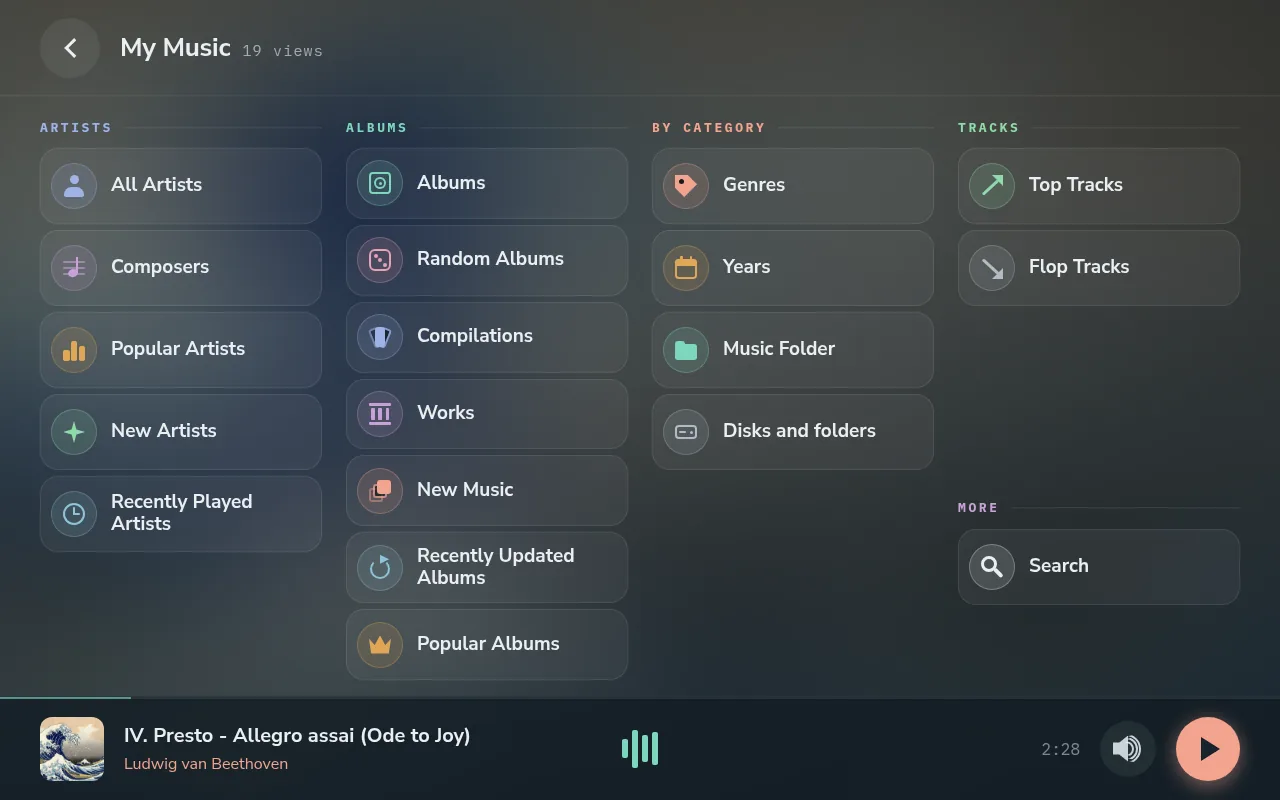
My Music groups Lyrion’s library views:
| Group | Views |
|---|---|
| Artists | All Artists, Composers, Popular Artists, New Artists, Recently Played Artists |
| Albums | Albums, Random Albums, Compilations, Works, New Music, Recently Updated Albums, Popular Albums |
| By category | Genres, Years, Music Folder, Disks and folders |
| Tracks | Top Tracks, Flop Tracks |
| More | Search |
Apps lists the apps installed on your Lyrion server (streaming services, internet radio and so on), each with its own logo and menus. A service’s first page can take a second or two to arrive; the panel says which service it is waiting for. A service’s playlist opens as a page of its tracks, each with its artist under the title (a single artist’s album shows titles only), and its button says Play playlist.
Search: tap a search field and type on your phone (section 7); results arrive as you type. A service’s Search opens straight on its field, and tapped from the phone’s touchpad it brings up the phone’s keyboard. My Music’s Search looks for artists, albums, works, songs and playlists at once.
A few things are left out on purpose:
- Lyrion’s player settings, alarms and sync;
- album artists and playlists, which have their own cards on Home;
- entries that would change your streaming account (for example Add to favourites).
An album a service cannot stream in your region shows its tracks as Not available.
5. When another source takes over
Only one source plays at a time. When you start Spotify, Bluetooth or Plexamp from your phone, that source takes over: Lyrion pauses, a short transition screen shows who took the player, and Now Playing shows the new source. When that session ends, the player can give itself back to Lyrion (Settings → Handoff → Reclaim Lyrion when a session ends, off by default), or you can start Lyrion again from the panel.
Spotify starts at the Starting volume you set, however loud the Spotify app was last time, so a takeover never starts at full volume.
6. The idle screen and the visualiser
After a while with nothing touched, the panel shows the idle screen: a clock, the weather and a changing background picture. A touch brings back what was there. Settings → Display sets when it appears and what it shows.
The visualiser shows a VU meter or spectrum from a collection of skins, drawn from the music as it plays. Open it with the visualiser button on Now Playing or from the phone; touch the screen to close it. A spectrum’s bars run from the deep bass on the left (50 Hz) to the top of what recordings carry on the right (16 kHz), the same at every sample rate. Each bar shows the music’s own level in its range, so a recording with little treble has short bars on the right.
7. The phone page
Open the player’s address in a phone’s browser, for example http://gexis.local:8090 (the name is your player’s, chosen at setup). Nothing needs installing; the phone and the player only need to be on the same network.
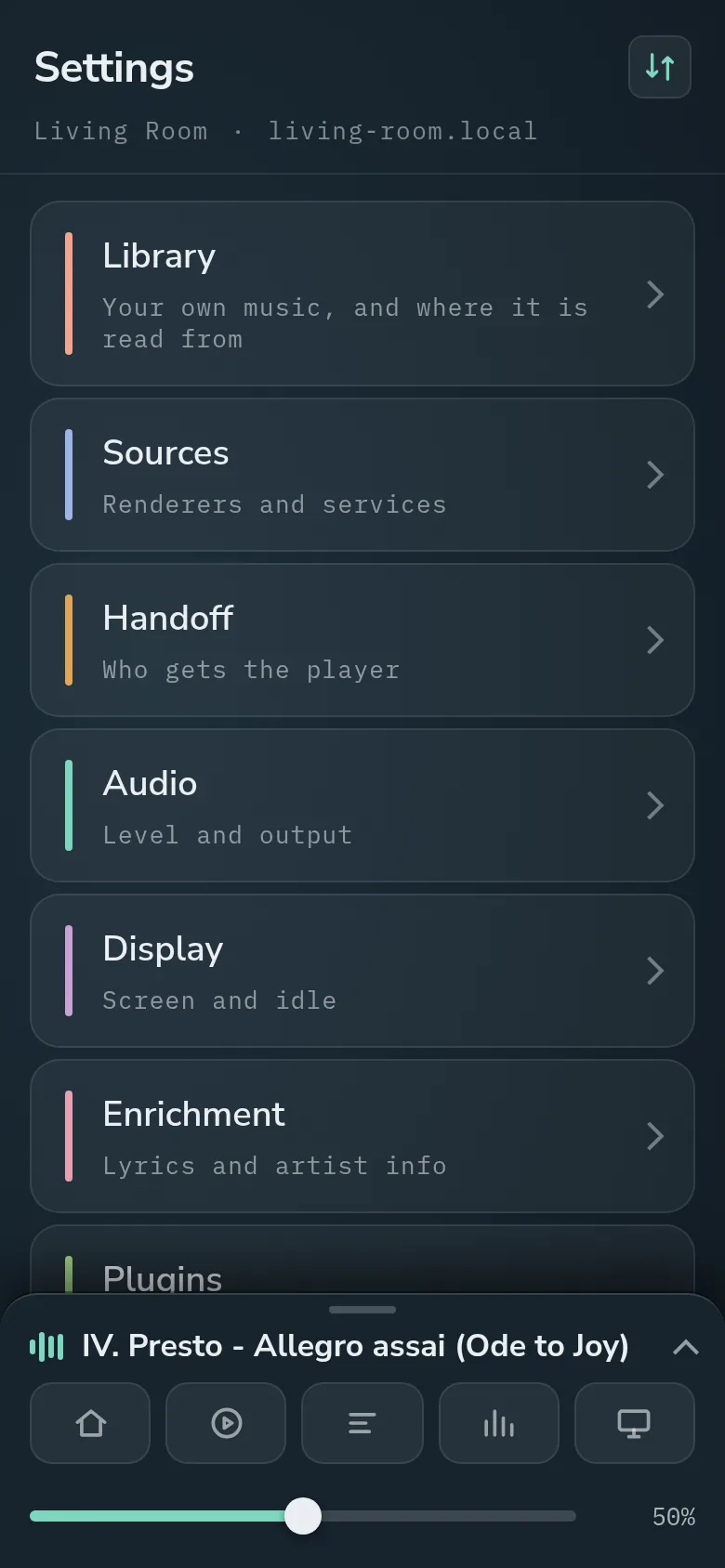
The phone page shows Settings above and the mini player at the bottom. With more than one player on the network, a switch button sits at the right of the Settings title: tap it for every player, each with what it is doing – Playing · Spotify, Stopped · Lyrion, Idle – and choose one to open its page in the same tab.
The mini player has:
- the track playing;
- a row of buttons for the panel: Home, Now Playing (lit while the panel shows it; tap again to minimise), Lyrics, Visualiser, the Screen button (the panel’s screen off until a touch, music starting or the button again wakes it; the player keeps playing, and some screens show their own “No signal” for a few seconds first) and Idle screen (not offered while the idle screen is switched off);
- the volume slider. A tap sets the level where it lands and a sideways drag moves it; a swipe up or down that starts on the slider changes nothing.
The touchpad
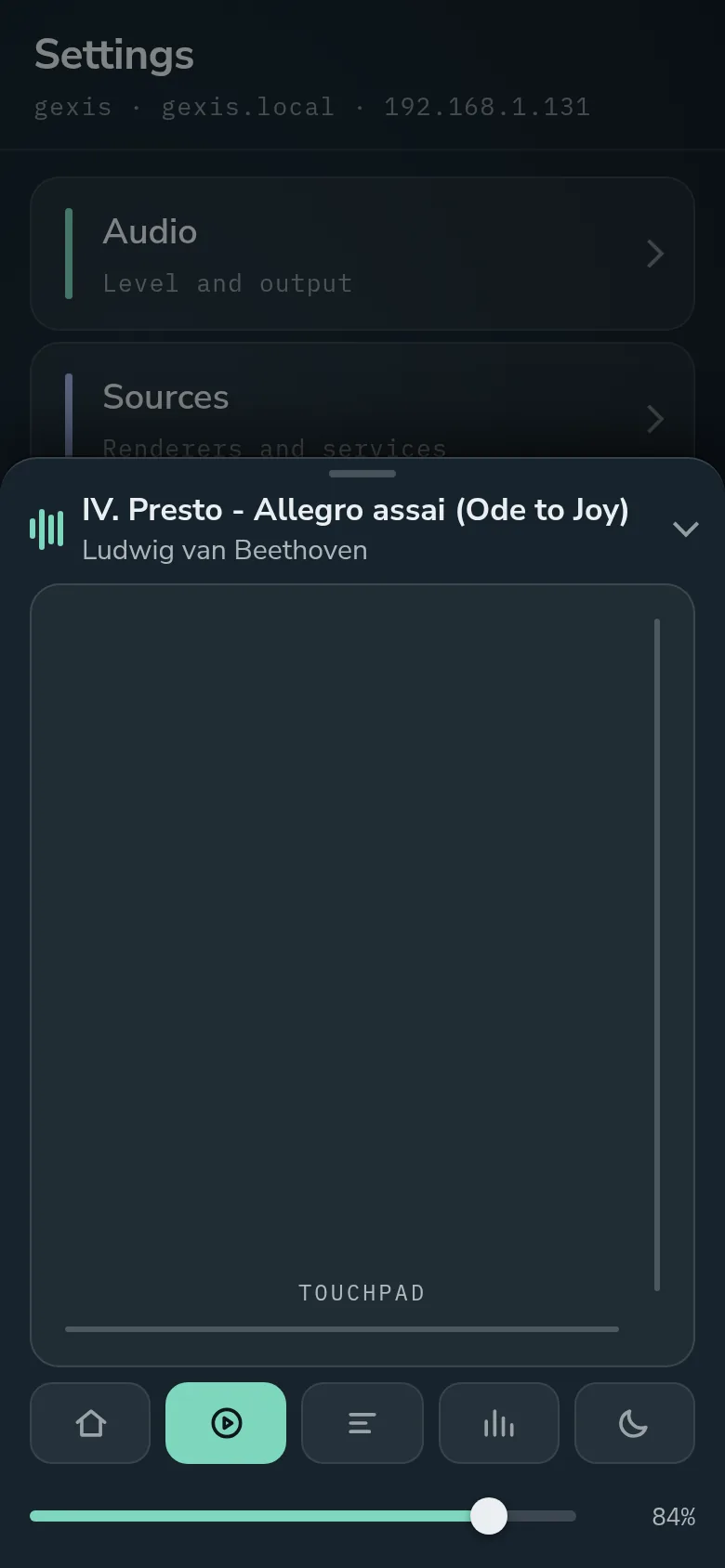
Tap the track name, or swipe the sheet up, to open it: its large area is a touchpad for the panel, so you can drive the screen from across the room. Swipe it down to close it.
| Gesture | Does |
|---|---|
| One finger | Moves the pointer on the panel. |
| Tap | Presses what the pointer is on. |
| Two fingers up or down, or sideways | Scroll what is under the pointer. |
| One finger along the right or bottom edge line | Scrolls with one finger. |
| Pinch | Zooms the panel in or out around the pointer. |
Tap a text field on the panel (a search, for example) and the phone’s keyboard comes up: what you type appears on the panel. Whatever the pointer is over that can be pressed is outlined, and the dot shrinks inside the outline (Now Playing’s tabs are underlined instead); only the part that shows is outlined, so a button half under the mini strip is outlined down to the strip. A track whose Play, Queue and Add buttons are showing is not outlined itself. The pointer hides after a few seconds of rest. Settings → Display sets Pointer speed, Pointer style (Dot or Arrow), and whether the touchpad is offered at all (Phone touchpad). While the visualiser is up, a tap on the touchpad only closes it, as a tap on the screen does. A tap outside the open sheet just closes it, so nothing behind it is pressed by mistake.
Settings on the phone
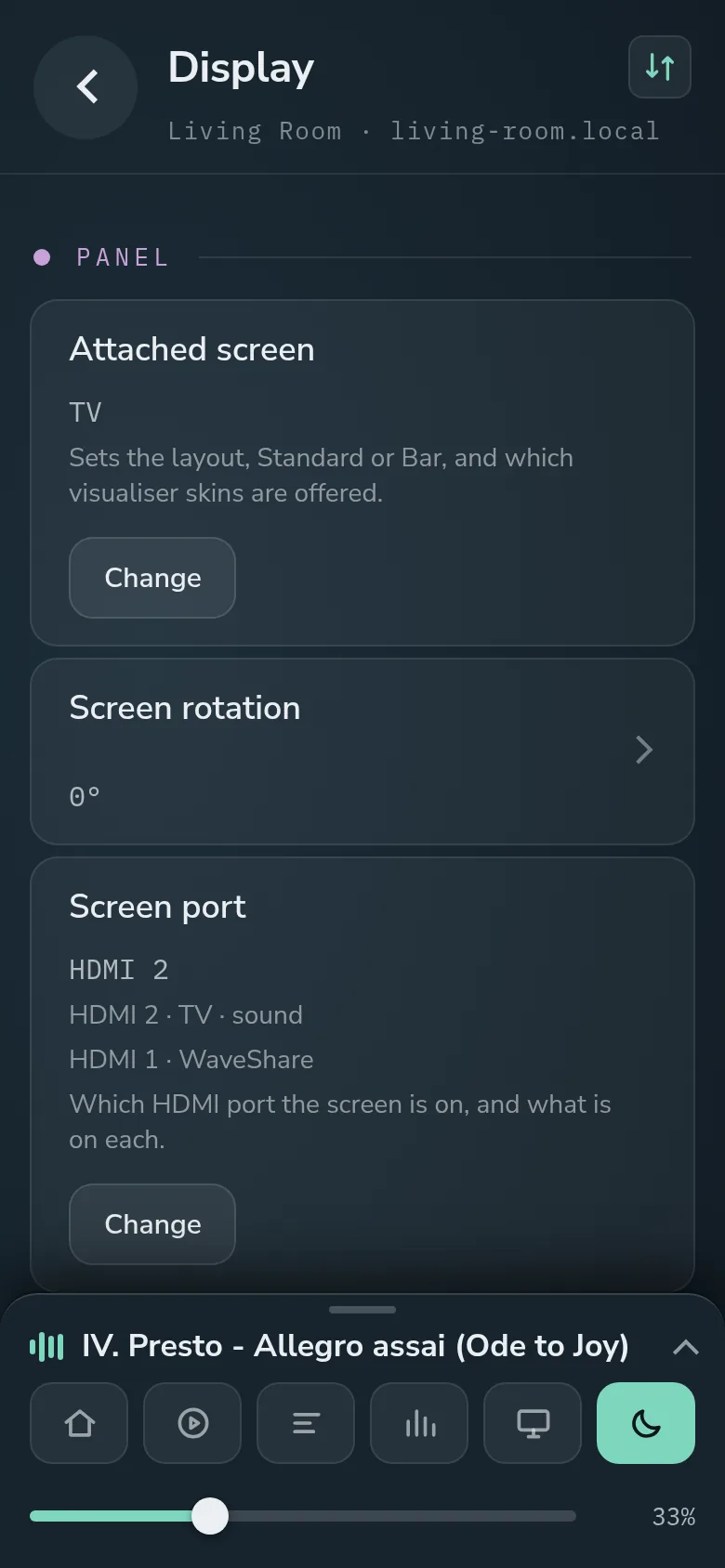
Every setting can be changed from the phone, which is the easier place to type a name, a password or a key.
8. Bar screens
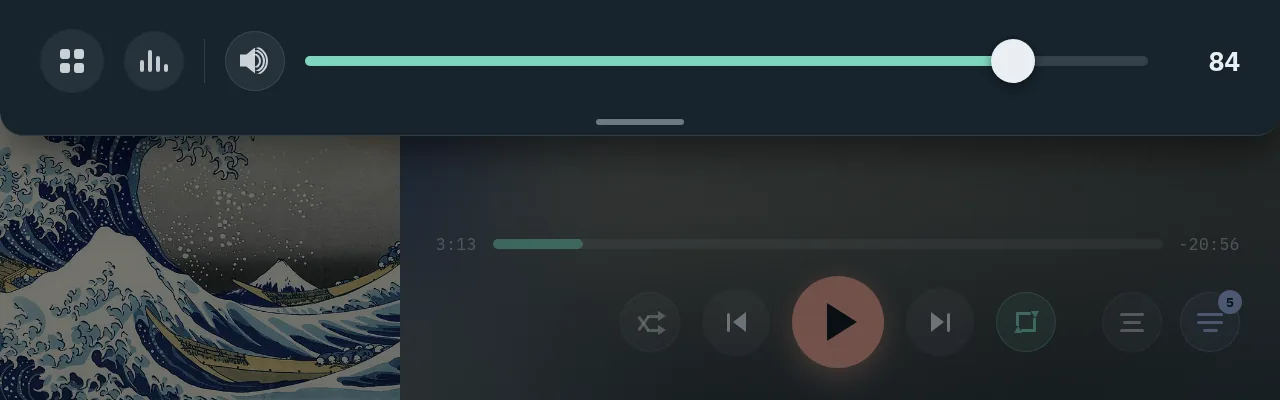
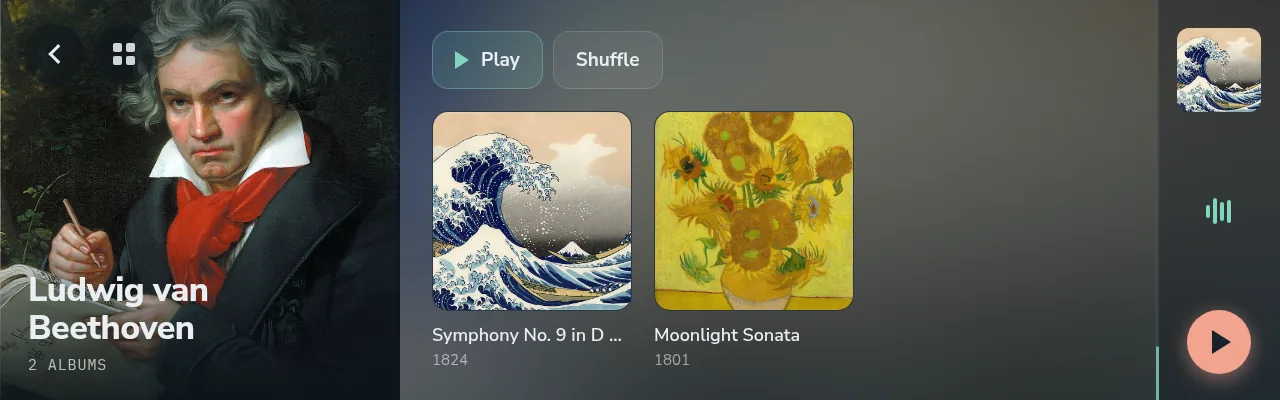
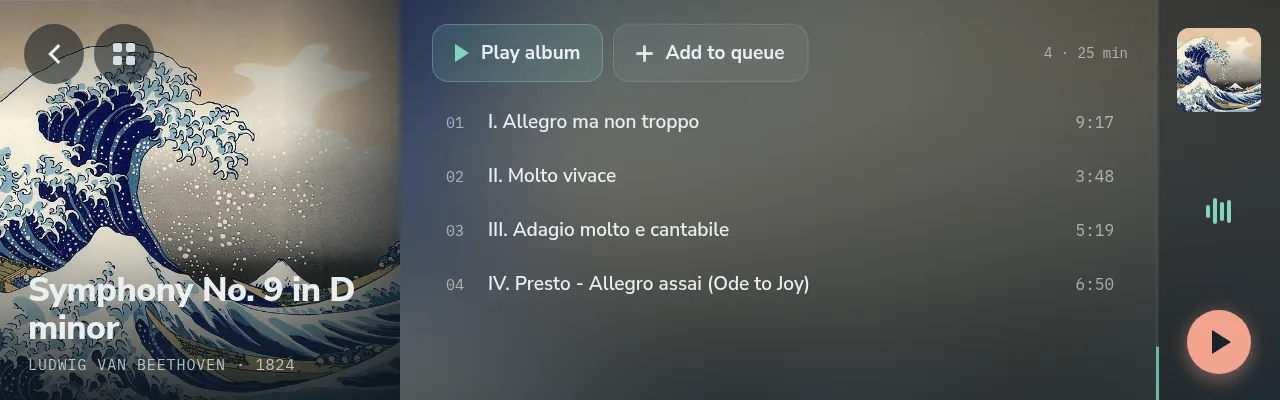
On a wide, short bar screen (such as the tested 1280 × 400 and 1480 × 320) the same player is laid out in strips: Now Playing on one line, and the library’s lists run sideways. A tray pulled down from the top holds Home, the volume and the visualiser. On Now Playing, the Minimise button on the artwork points right, to the mini strip it leaves you with, and sits where the library’s Back button does, at its size. With the Lyrion client off, the waiting screen keeps the clock in a column on the left with the source tiles beside it.
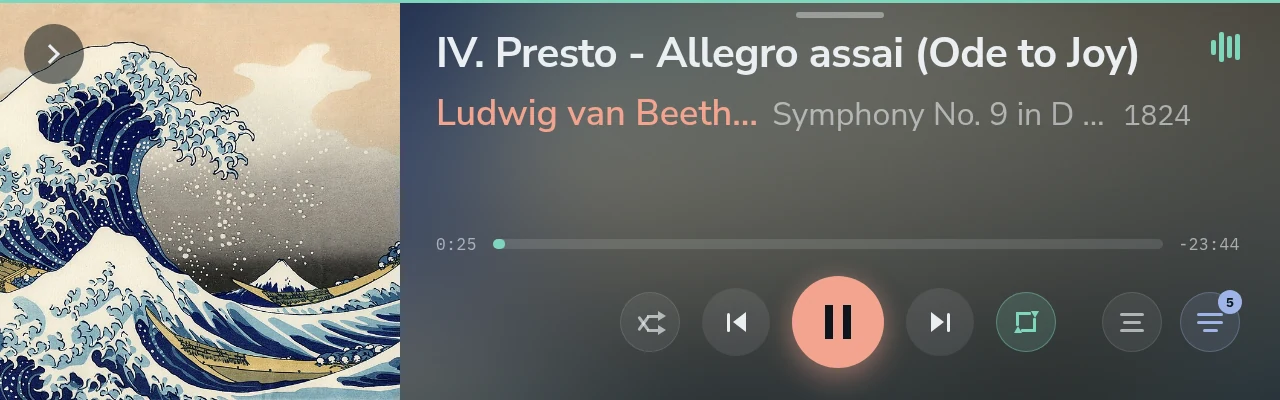
Pulled down from the top of any screen, the tray: Home, the visualiser and the volume. Tap below it, or push it back up, to close it.
The library’s lists run sideways, with a strip of letters to jump along them.
An artist’s page and an album’s: the picture on the left, what can be played on the right.
9. Settings
Settings is reached from the Settings card on Home, or on the phone page. It is grouped into eight areas, listed down the left-hand side on the panel.
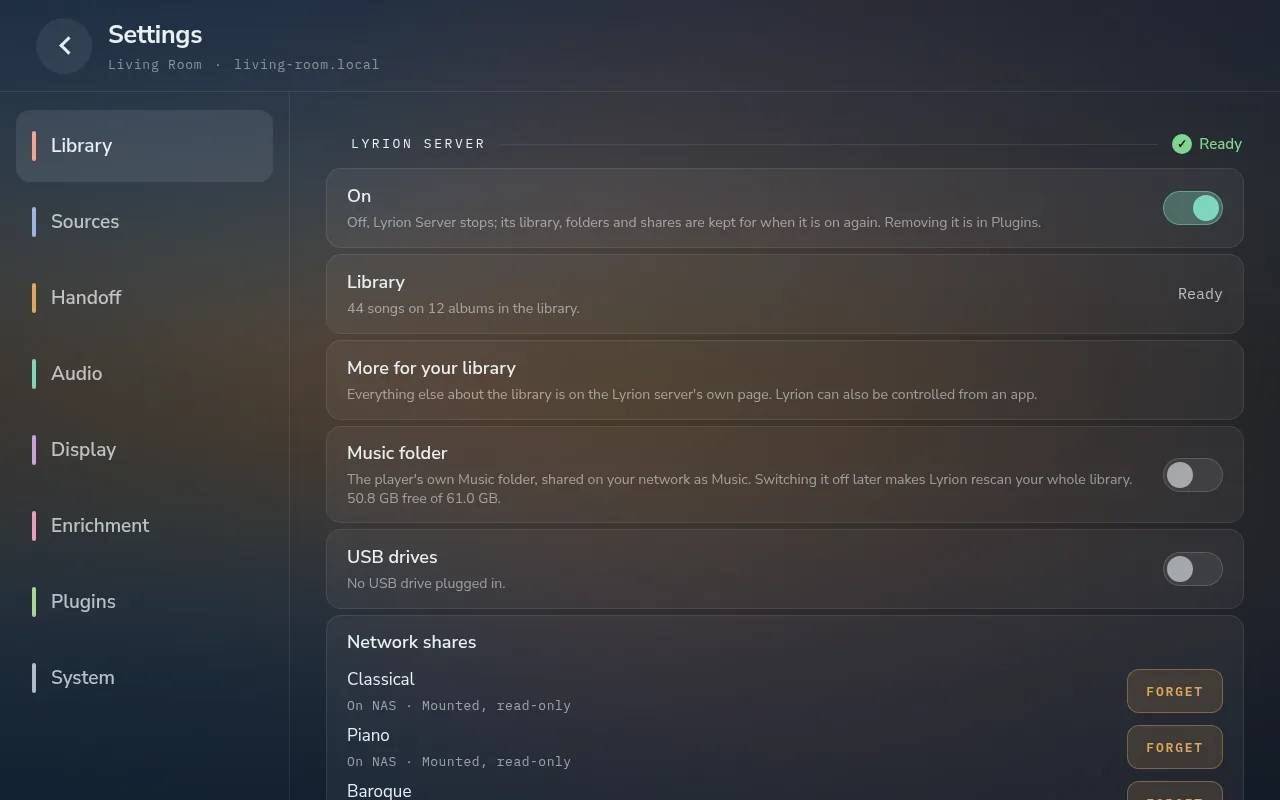
Tap a row to change it. A row that only applies in some cases (for example, Spotify’s Starting volume while Spotify is off) is hidden until it does. Changes take effect at once unless the row says otherwise.
Library — Your own music, and where it is read from
The Lyrion Server (a music server on the player itself) is switched and set here. It reads only the music locations switched on, none at first:
| Setting | What it does |
|---|---|
| Lyrion Server: On | The server’s own switch, also on the Plugins page. Off, it stops and its other rows are hidden; its library, folders and shares are kept for when it is on again. Its download, version and Remove are on the Plugins page only. |
| Lyrion Server: More for your library | Where everything else about the library is: a link to the server’s own page, and to three apps that control it – Squeezer (Android), Lyrion (Android, F-Droid) and LyrPlay (iPhone). The links show on a phone, not on the panel. |
| Lyrion Server: Library | Read only: what the server is doing – starting, adding its add-ons, reading your music with a progress bar – and once ready, how many songs and albums it holds. The section’s heading says the same in a word. |
| Lyrion Server: Music folder | The player’s own Music folder, shared on the network as Music. Its note says how much room is free and how much there is in all. Below 4 GB free the Music share takes no new files, and the note says so, until more than 4.5 GB is free. |
| Lyrion Server: USB drives | Folders on USB drives plugged into the player. It cannot be switched on while no drive is plugged in, and says so; switched on already, it stays on. |
| Lyrion Server: USB folders | Shown with USB drives on. Each drive plugged in: tick it to add all of it, or open it and tick folders at any depth, then Add. A drive not chosen yet reads Not added yet; the folders of an unplugged drive are kept for 7 days. |
| Lyrion Server: Network shares | The shares added, each with its Forget. |
| Lyrion Server: Add share | Folders on a NAS or a computer (SMB or NFS): a scan lists the servers on the network, or add one by its address. Tick a share, or open an SMB share and tick folders at any depth, then Add. Shares already added are not listed again. |
Taking a location away later – a switch turned off, a USB folder removed, a share forgotten – makes Lyrion clear its library and scan everything again, which for a large library takes hours. A network share whose server does not answer reads Not mounted: the server did not answer; the other shares are still mounted.
Sources — Renderers and services
| Setting | What it does |
|---|---|
| Lyrion Client: Enabled | Plays your Lyrion server’s music. |
| Lyrion Client: Server | Which Lyrion server. Servers announce themselves on the network, each shown by its machine’s name, else the library name set in Lyrion, else its address; typing an address is the fallback. |
| Lyrion Client: Navigation | How you move around your library on the screen, one choice: Simple – the home tiles, albums, artists, playlists and radio; Extended – Lyrion’s own menus as well: My Music, Favourites, Apps (section 4); Off – only what is playing and the sources, with no library to browse; Lyrion’s apps on your phone still play to the player. |
| Spotify Connect: Enabled | The player appears as a Spotify Connect device. |
| Spotify Connect: Starting volume | The loudest Spotify starts at when it takes over. Hidden with Volume on Fixed. |
| Bluetooth: Enabled | The player accepts Bluetooth audio. |
| Bluetooth: Pairing | Confirmation required shows a six-digit code on the panel to accept; PIN-free pairs anything in range. |
| Bluetooth: Discoverable | Whether phones can find the player: Always (the default), 3 min after boot or Off. With Pairing on Confirmation required, a new phone still has to be accepted on the screen. |
| Bluetooth: Trusted devices | Remembered devices; forget one here. |
| Bluetooth: Auto-trust on pair | Remembers a device once paired, so it reconnects by itself. |
Plugins add their own rows here once switched on: Plexamp (claim the player into your Plex account).
Handoff — Who gets the player
| Setting | What it does |
|---|---|
| Restore transport on return | What Lyrion does when it gets the player back: Play only if playing (it resumes only if it was playing when it was taken), Always pause or Always play. |
| Reclaim Lyrion when a session ends | Off by default. On, when Spotify, Bluetooth or Plexamp stops, Lyrion takes the player back; a phone that locks can end a Spotify session and switch the player to Lyrion without warning. |
| Show transition screen | The short animation when one source takes over from another. |
| Transition screen length | How long it stays up. |
Audio — Level and output
| Setting | What it does |
|---|---|
| Output | Where the sound goes. If the chosen output is an HDMI port and its device disappears (a receiver switched off), the headphone jack plays until it is back, on its own volume rather than Fixed, and the row says so; the player returns to HDMI by itself. A USB DAC is shown by its maker, with a line saying what it reports it can take (for example USB 2.0 · up to 768 kHz / 32-bit · native DSD). An HDMI port shows what is on it – the screen by its model, a TV or receiver by its own name – and the sound it takes (for example LG TV · up to 192 kHz / 24-bit), or takes no sound for a display without any. Over HDMI the sound is not bit-perfect; HDMI has no volume control of its own, so its volume is Software or Fixed, and the visualiser moves only on Software. A change of output while music plays stops playback; start it again when ready. |
| Sound card board | Most boards and every USB DAC are found by themselves. A board that is not (it does not show under Output) can be chosen here. Tested beside a board means played and measured by the project, or reported working by owners; a problem an owner reported shows as a line under it; other boards carry no mark. The same goes for Output and for the screens under Attached screen. |
| Volume | How the level is set. Hardware (default): by the sound card’s own volume control, bit-perfect at every level. Software: by the player recalculating the sound, on any output; not bit-perfect below 100 %. Fixed: always full level, for an amplifier that sets the volume itself; it asks first. Any change of volume type stops playback while the sources reconnect on it. On a DAC that takes DSD natively (some USB DACs), Fixed also plays DSD files from Lyrion as DSD, unconverted, and the Fixed choice says so; otherwise DSD files are converted to PCM. A DSD file of more than two channels is always converted, and folded down to stereo. The visualiser stays still during DSD. On an output with no volume control of its own, such as HDMI, Hardware is greyed out and Software is used in its place. The level carries across between Hardware and Software. |
| Maximum volume | The loudest the player will go, on any input. At 80, 100 % on every control means that level. Hidden with Volume on Fixed. |
| Volume curve | How the slider’s travel maps to loudness. Cubic (half travel is −15.5 dB) is the usual shape; Linear puts half travel at −30 dB. |
Display — Screen and idle
| Setting | What it does |
|---|---|
| Personalise | Asks again, on your phone, how you listen, whether the phone’s touchpad works the screen, and what the screen shows – the questions after first-time setup – starting from what the player has now. The player’s screen shows a code to the page. |
| Attached screen | The display in use, by its name (a TV by the name it gives). Change picks the screen’s model from the list, by maker; it sets the layout, Standard or Bar, and which visualiser skins are offered. A screen not in the list is shown as Other screen with its size. |
| Screen port | Which HDMI port the screen is on. The tile and its list show what is plugged into each port – the screen, another device by its name (a sound bar or receiver), sound when the sound goes to that port; a port with nothing connected is greyed. A change that alters the picture restarts the player and asks Keep this screen?. The port chosen stays the screen, even with a touch panel on the other port. A TV can be the screen: it runs at 1920 x 1080 (or the largest 16:9 size below it that it offers), and since it has no touch, Keep this screen? is answered on the phone page, as for any screen not in the list. A listed touch screen is answered on itself, and on the phone page too when the player cannot tell that its touch works. A touch panel left on the other port is switched off. A port that is not the screen shows black. If the TV crops the edges of the picture, set its picture size to Just Scan or Original. When the TV’s port also carries the sound, display standby only blacks the picture, so the music goes on. On a board with one HDMI port, the row only says what is on it. |
| Text size | How large the writing on the player’s screen is: 90 % to 130 %, 100 % as it comes. The screen changes at once; Home’s tiles grow with larger text. Pictures, buttons and the layout keep their size, so long titles are cut short sooner at large sizes. A phone keeps its own size. |
| Screen rotation | For a screen mounted the other way up. |
| Headless | Turns the player’s screen off; settings that only affect the screen are hidden while it is on, the screen in use, its ports and its rotation included. |
| Display standby: Scheduled standby, Standby times | With Scheduled standby on, the screen goes off during the standby times whenever nothing is playing. Up to six times, each a start and an end – picked from a grid of hours and quarters – on the chosen days; one may run past midnight, counting for the day it starts. |
| Display standby: Back to standby after | A screen woken during a standby time goes dark again after this long with no touch and nothing playing (2 minutes unless changed; up to 30). |
| Touchpad: Phone touchpad, Pointer speed, Pointer style | The phone’s touchpad (section 7). |
| Volume: Show volume when changed elsewhere | A phone’s volume change opens the drawer; the panel’s own changes do not. |
| Volume: Volume drawer auto-hide | How long the drawer stays when a change from elsewhere opened it. |
| Photo service and location: Pixabay API key, Location | Shared by both screens below. The key is for online wallpapers (Pixabay, free). The location is for the weather and for the wallpapers’ seasons and holidays; until one is set, the country comes from the time zone. |
| Home screen: Home screen list, Items in the strip | With the Lyrion client on: what the row under Home’s cards shows, and how many. |
| Home screen: Clock on the waiting screen | With the Lyrion client off: the time, date and name in the top left. |
| Home screen: Background and the rows after it | With the Lyrion client off: the waiting screen’s own picture, set apart from the idle screen’s, with the same rows as below (no artist pictures). |
| Idle screen | On or off. Off (the default on a new player), the panel stays on what it shows and the rows below are hidden. |
| Idle screen: Screen, Timeout | The built-in clock-and-weather screen, or an external page; and after how long, with nothing playing and nobody touching the panel. |
| Idle screen: Background | Gexis wallpapers, the player’s own pictures; artist pictures from the library, which show the player’s own while the Lyrion client is off; online wallpapers (Pixabay); pictures on the device; or black. |
| Idle screen: Wallpaper topics | With online wallpapers. Space (galaxies, nebulae, astronomy) and Calm search Pixabay’s selected photos; the others are Pixabay’s own categories. Choosing several mixes them. |
| Idle screen: Wallpaper styles, Follow the time of day | With Gexis wallpapers: the chosen styles (Calm, Colourful, Psychedelic), and the hour’s pictures (dawn, day, dusk, night). |
| Idle screen: Seasons, Holidays | Seasons, with Gexis wallpapers: the season’s pictures join the styles, by hemisphere. Holidays, with Gexis wallpapers or online wallpapers: on New Year, and on Christmas and Easter where they are public holidays, only those days’ pictures show; Easter follows the Western or Orthodox date by country. |
| Idle screen: Background brightness, Change the picture every | How dark the picture is behind the text, and how often it changes. |
| Idle screen: Clock, Clock format, Weather, Forecast, Weather icons | What the idle screen shows over the picture; forecasts come from Open-Meteo. |
| Idle screen: Weather icon motion | Animated or Static. Animated icons use about half of one of the Pi’s four processor cores while the idle screen is up; Static uses almost none. |
| Visualiser: Timeout, Stop when nothing is playing | When the visualiser takes the screen while music plays, and when it gives it back. |
| Visualiser: Skin type, Rotate skin per track, Skin | Which skins it uses; tap a skin to preview it, then Use this skin. |
| Visualiser tweaks | How the bars and needles move, how far the needles follow the volume, how high they read (Gain), and whether turntables and tapes turn. Only what the chosen Skin type draws is listed: the spectrum’s smoothing for skins with a spectrum, the needles’ rows for skins with meters, the turntables’ and tapes’ animation for those (and Fanart, mostly turntables), and the record speed for turntables. All lists everything. |
Enrichment — Lyrics and artist info
| Setting | What it does |
|---|---|
| Enrichment | Looks up what a source does not send: lyrics, biographies, covers, artist pictures. |
| Lyrics | Fetches lyrics, synchronised where available. |
| Look up missing artwork | Finds a cover for sources that send none (Bluetooth, radio). |
| ListenBrainz token | For the artist page’s Popular list; a free token. |
| fanart.tv key, TheAudioDB key | Optional keys for artist pictures and album covers. |
| Confidence threshold | How sure the match must be (recommended 90 %). Below it, nothing is shown rather than something wrong. |
| Lyrion Client: Find portraits and covers | Looks up every album artist’s portrait and every album’s cover, keeps Lyrion’s where none is found, and shows what the last run found. |
Plugins — What is installed beyond the player itself
Optional parts, each with its own switch: the visualiser skins for this screen’s size, Plexamp, the Lyrion Server and the Beszel monitoring agent, among others. A plugin that needs software from its maker downloads it when switched on. Setup offers the same plugins, and the first start shows each download arriving. A plugin file can also be uploaded here. Each plugin’s switch says its version (for example Version 0.4.7); the software it downloads is named, with its own version, on the line below once it is installed. While Beszel is on, its heading in System, above the hub address, token and key, says whether the agent has reached its hub: Connected in green, Connecting in orange for its first minute, Not connected in red after that. A Hub public key that is not one is refused when it is saved.
System — The player, its network, updates and maintenance
Everything about the player itself, under seven headings.
This player
| Setting | What it does |
|---|---|
| Device name | One name for everything: the network address (name.local), the Lyrion player, the Spotify device and the Bluetooth name. A name is one line of text. |
| Time zone | Taken from the network; set it by hand only when that is wrong. |
Network
| Setting | What it does |
|---|---|
| Wi-Fi | The networks in range and the ones the player knows. The connected network shows its speed; tap it to see its signal (dBm and %), speed, band and channel, and the player’s address, updated every few seconds. A closed lock marks a secured network that needs its password; an open lock, one whose password the player already has. Under the connected network’s details, its address can be set by hand the same way as the cable’s, and kept the same way. |
| Cable | Shown while a network cable is plugged in: Connected · 1000 Mb/s · address. Tap it to see the address, gateway and DNS, and to set the address by hand (Manual: the address with its prefix, the gateway, one or two DNS servers) or back to Automatic. After Save, open the player at its new address and tap Keep within 60 seconds; otherwise the old address comes back by itself. While the cable is in, the Wi-Fi is off and its networks stay saved; unplug the cable and the Wi-Fi connects again by itself. |
Updates
| Setting | What it does |
|---|---|
| Software update | What is installed, what is waiting, and Check for updates / Update (section 10). |
| Change logs | What changed in the last 10 releases. |
| Updates | Automatic installs a waiting release at night, never while playing. |
| Update channel | Testing gets each release first, Stable once it has been tried. Recommended: Stable. |
Backup and reset
| Setting | What it does |
|---|---|
| Back up now | Saves the settings, the library’s pictures, the paired devices and the device’s configuration into the Backups share. |
| Restore | Puts a backup from the Backups share back and restarts the device. On a phone or computer, Download beside a backup saves it there, and Add a backup puts one from there in the list (checked first; it is not restored until you choose it). A backup that is empty or damaged says so on its line and offers only Forget. A freshly flashed card can restore one during setup instead, straight from the phone: setup asks for this player’s output (with its volume type) and screen, and its Check it over lets you change the name too. |
| Reset to factory settings | Puts the player back as on a freshly flashed card, then restarts into setup. Everything goes: every setting and the name, the settings and idle page chosen when the card was flashed, the Wi-Fi networks, paired devices and sign-ins, the skins and plugins, the Lyrion Server’s library, the screen’s browser data, and the backups kept on the player (the Backups share stays, empty). The music folder, its playlists and the Pictures share stay. Download a backup first under Restore. To confirm, hold Hold to reset and restart for 3 seconds, until its bar fills; letting go earlier cancels. The screen and every phone then say the player is resetting; a phone also says how to reach setup. The installed version stays. |
Help
| Setting | What it does |
|---|---|
| Problem report | On a phone or computer, three steps. What happened: in your own words, and how often. Preparing: the player gathers its logs, versions, hardware and settings, ticking each line of a checklist as it goes – including what it took out: addresses, names, networks, shares, keys and what you play. Send: On GitHub opens the report there filled in with what happened and the log’s last errors (needs a GitHub account; the full file can be dragged onto it too), or By e-mail downloads the file to send to the address shown. Nothing leaves the player until you send it; read the file first. The prepared report stays on the player for an hour. On the screen it says where to open it instead. |
| Hardware feedback | On a phone or computer, three steps. The screen: a test pattern on the player’s screen, with four circles to tap on a touch screen, which measures where the touches land, and two questions. The sound: a short test tone at 44.1, 96 and 192 kHz played at the current volume (not while a source holds the sound card, even paused: stop it first), and three questions. Did the music sound right? must be answered: GitHub needs it. Anything else: your own notes, if any, and what the player adds for you, to read before it goes. Without a screen, or with Headless on, it starts at the sound and has two steps. Then the same Send step as the problem report: On GitHub opens the feedback there, filled in with what the player reads of them (never a serial number or anything about you) – Create on GitHub sends it – or By e-mail downloads it as a text file to send to the address shown. The player keeps the last one: the row shows when it was made, with Send again and Start over, until the sound card or screen changes. It helps others see what works before buying. A week after a sound card or screen that is not Tested is first used, a line at the top of System offers it once; × puts it away for good. |
| Debug logs | Keeps the logs across restarts, for tracking down a problem. |
| API explorer | For building apps and home automation: shows the player’s API at its address followed by /api, where every route is described and can be tried against this player – restart and reset included. Off by default. |
About
| Setting | What it does |
|---|---|
| Legal, Credits | The licences, and everyone whose work is in the player. |
Power
| Setting | What it does |
|---|---|
| Reboot | Restarts the device; playback stops. |
10. Updates
When a new release is waiting, Settings → System → Software update shows it with its notes. A player several releases behind shows the notes of every release it skips, newest first, each under its number and date. What it shows is from the last check, which runs every night; Update… checks again first, so it offers what the channel holds now, with its notes. Update runs six steps, each ticked as it finishes:
- download;
- back up the settings;
- stop playback;
- install;
- restart the player;
- check that it answers.
The panel shows the steps full-screen and keeps them up, all ticked, until you press Done.
The backup from step 2 is listed under Restore as before an update. The player keeps the newest three of these and deletes older ones; a backup made with Back up now, or copied into the Backups share, is never deleted.
Check for updates pressed while an update is being installed – the automatic one at night included – shows that install’s steps instead, with An update is being installed. Check for updates again once it has finished.
On the player’s own screen, Update (or Continue, when music is playing) goes straight to the full-screen update view.
If something goes wrong during the install, the player puts the previous release back by itself. If an update stops without finishing, the panel lets go after about half a minute, and Software update shows what the updater last reported. When the player starts again after a power cut during the install, it finishes the install and restarts once more, or puts the previous release back. An install found cut short later, by Check for updates or the check at night, is finished once nothing is playing, and the device restarts; while music plays, it waits.