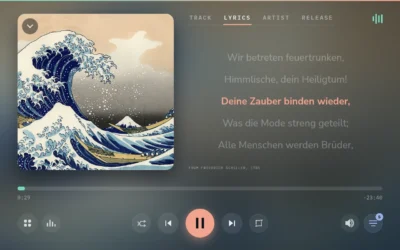
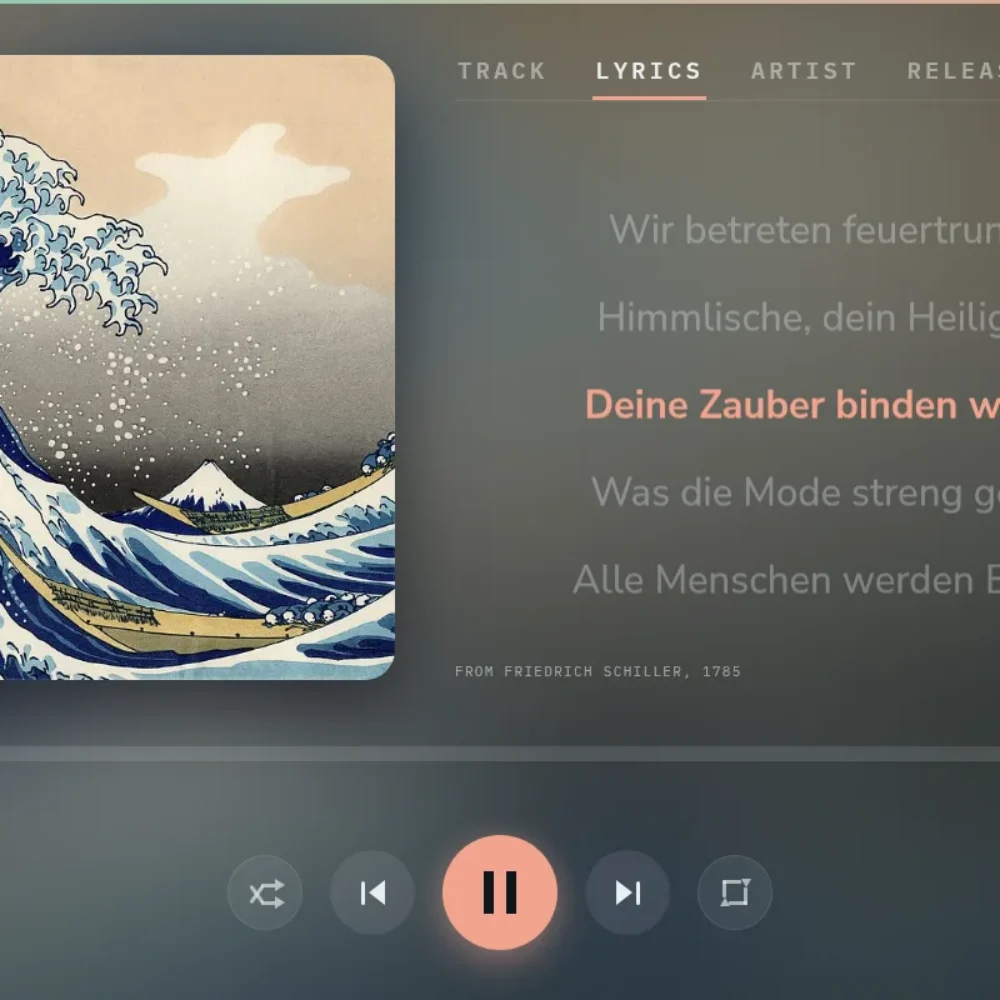

A title and a cover are where Gexis Player starts. Around the track playing it adds the lyrics, in time with the music, a short biography of the artist, the facts of the release, and an artist page with their popular tracks. It works for every source: your own library, Spotify, Bluetooth and radio.
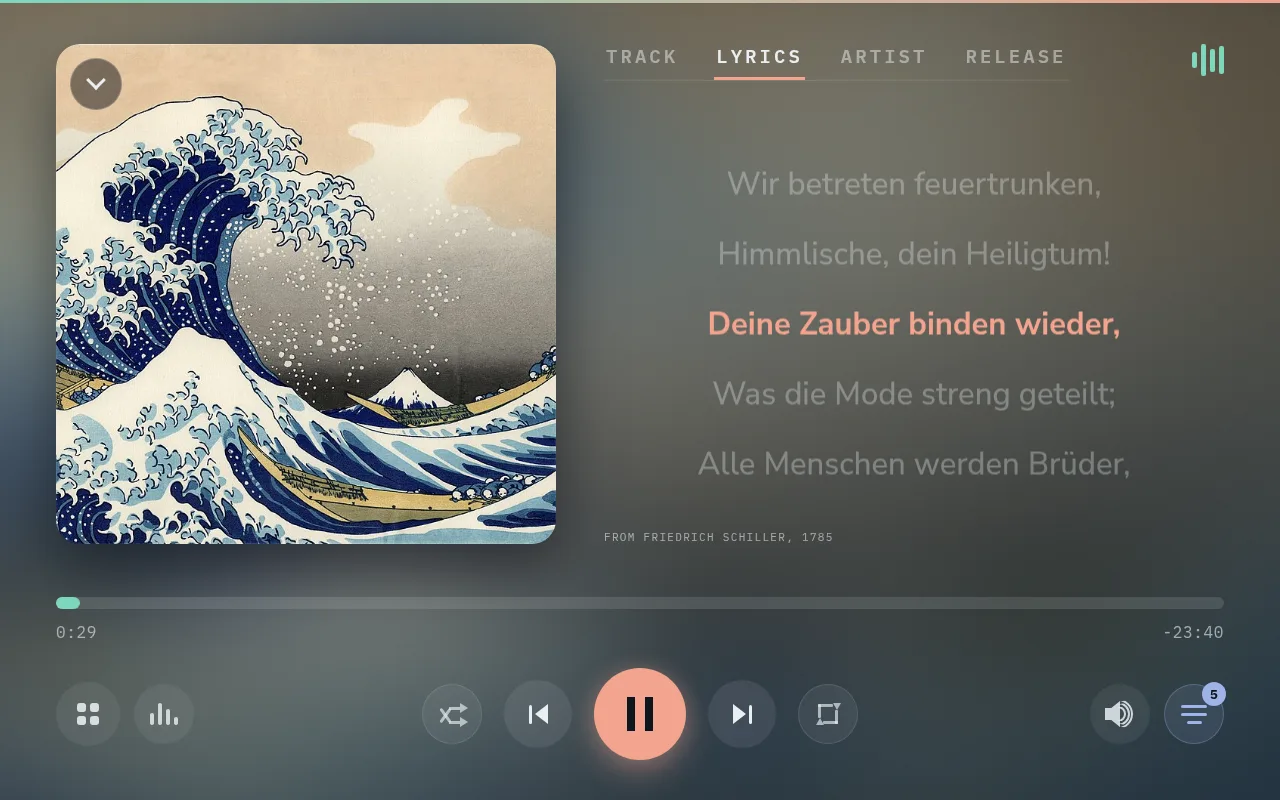
The Lyrics tab: the current line lit, the next ones waiting, the source credited underneath.
🎤 Four tabs on Now Playing
- Track: title, artist, album and year. When the song has synchronised lyrics, the current line and the next one show here too.
- Lyrics: the whole text, following the music when it is synchronised.
- Artist: a short biography, the artist’s genres and similar artists.
- Release: the album’s year, number of tracks, length and label, with a note about the release when there is one.
The lyrics come from LRCLIB. Where it has only plain lyrics, they show without timing; some tracks have none. On the phone, the Lyrics button in the mini player brings them up on the screen.
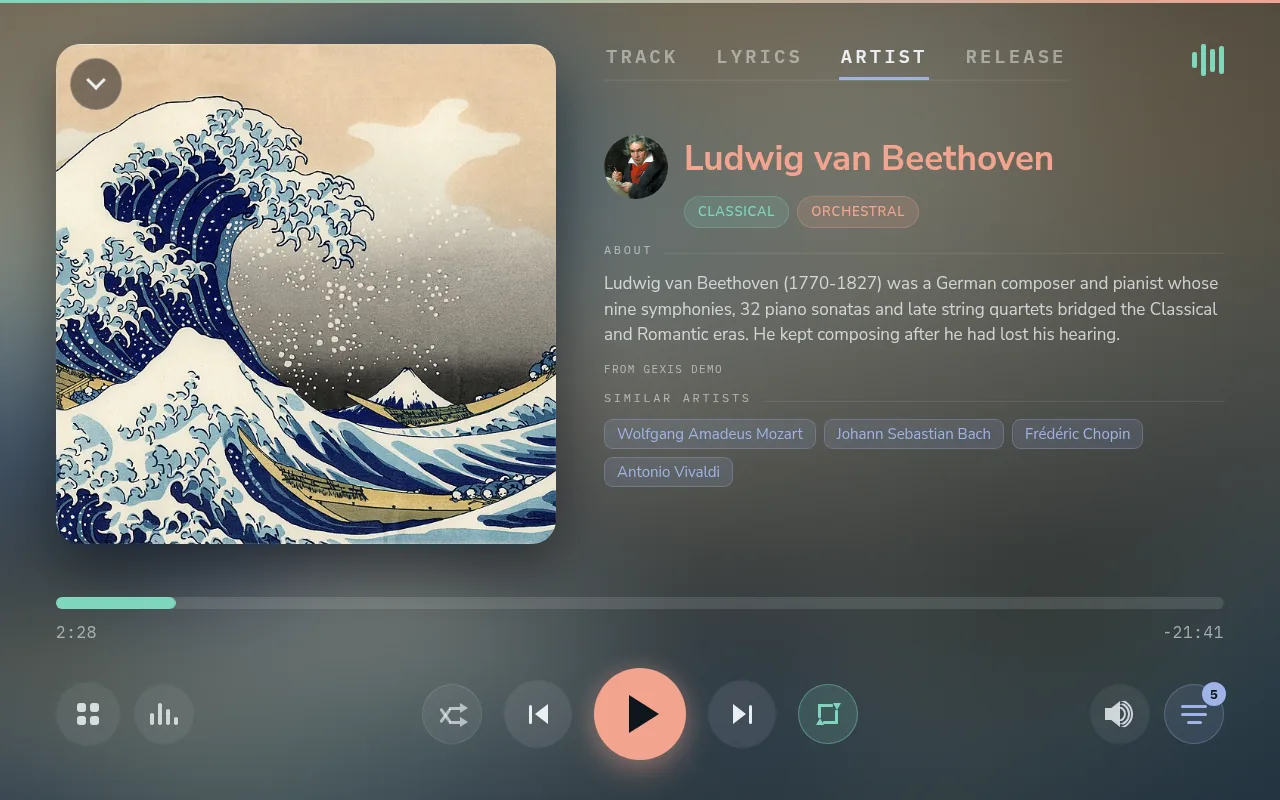
The Artist tab: portrait, genres, a short biography and similar artists.
Names lead somewhere. Tap the artist’s name for their page in the library, a similar artist the library has for theirs, and the album’s title on Track or Release for the album’s page.
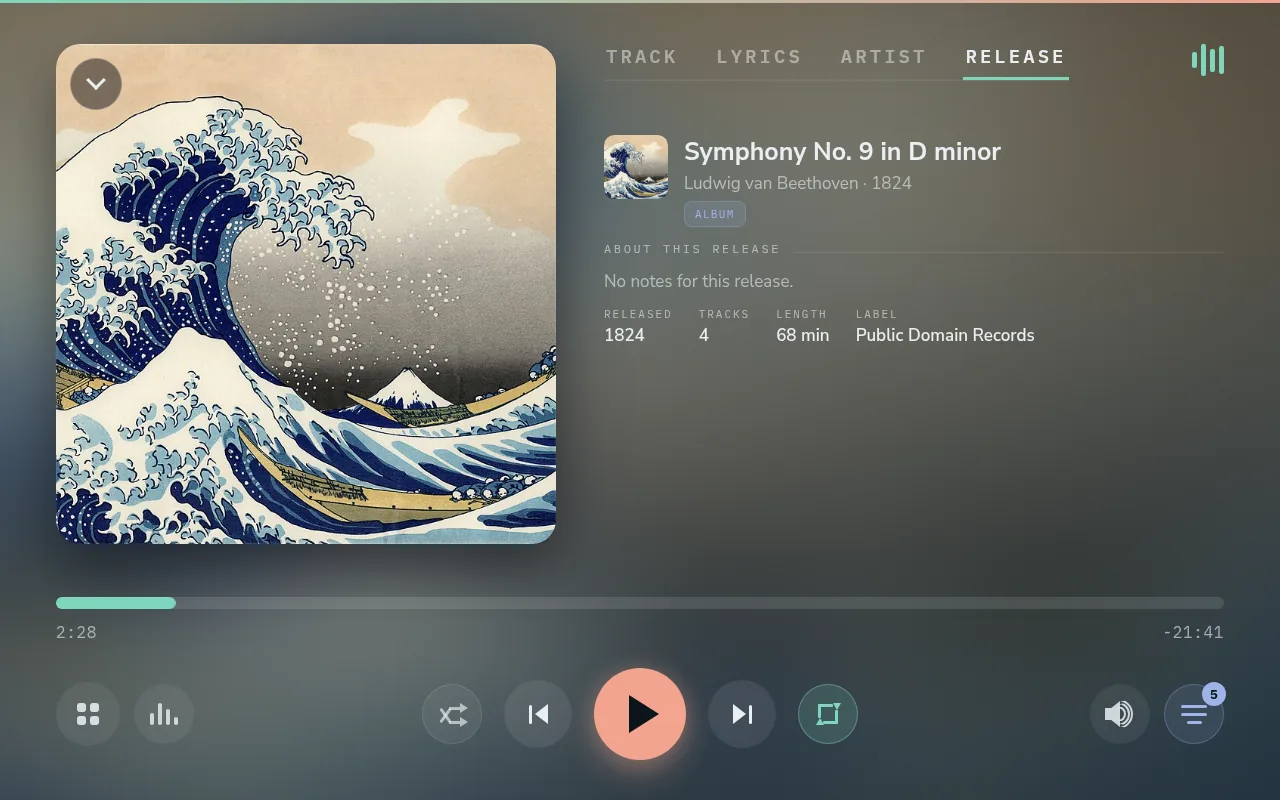
The Release tab: year, number of tracks, length and label.
🧑🎤 The artist page
An artist’s page shows their portrait, genres and albums, with Play and Shuffle for everything by them. Below come the biography, their Popular tracks and similar artists. A tap on a Popular track shows Play, Queue and Add, as on any other list.
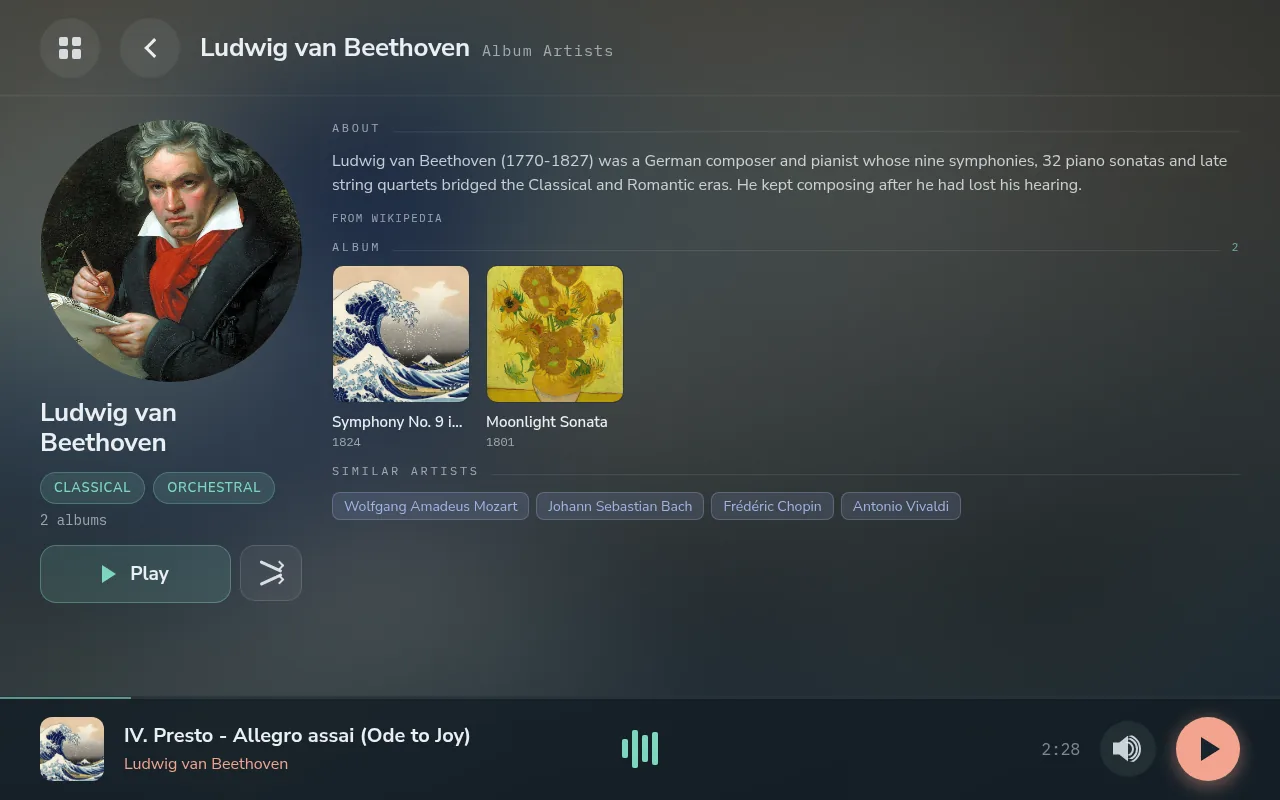
An artist page: portrait, biography, albums and similar artists.
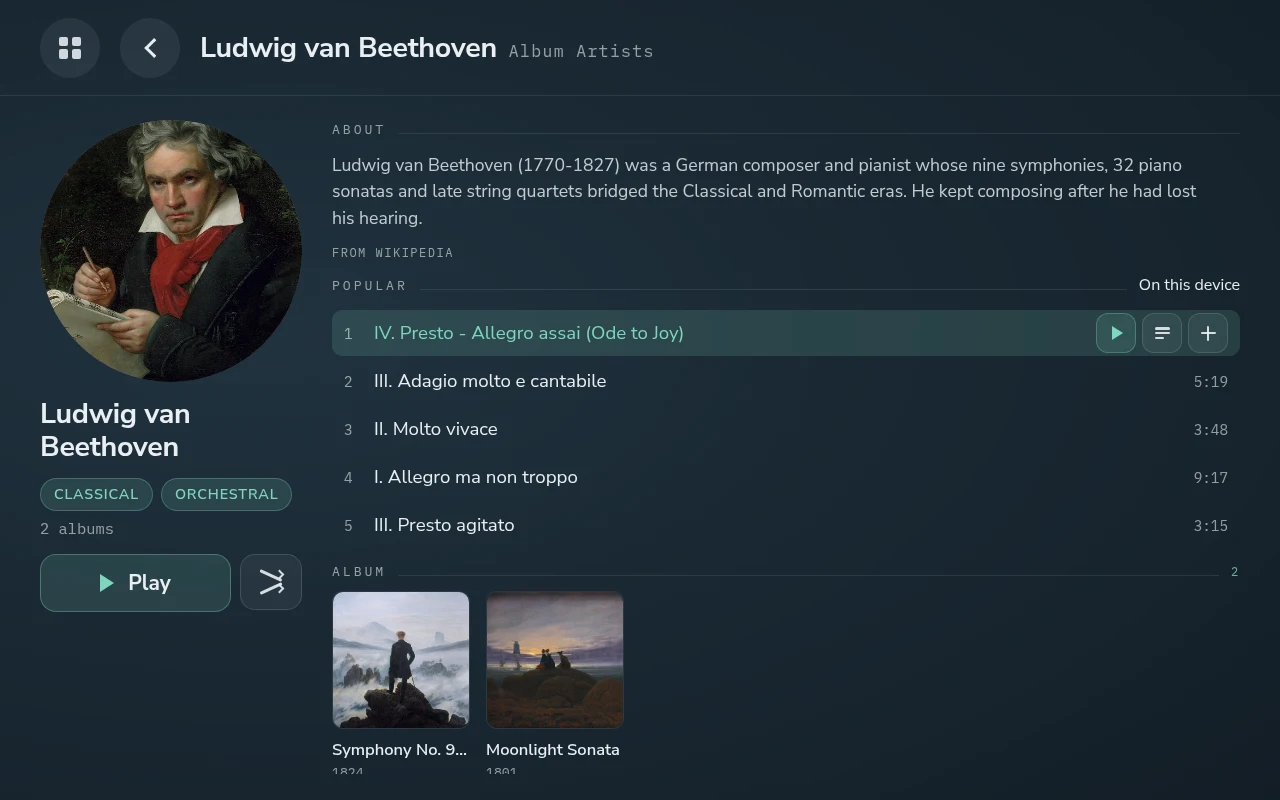
The Popular list, with one track’s actions showing.
The Popular list needs a free ListenBrainz token, entered under Settings → Enrichment. On a bar screen the same page is laid out sideways: the picture on the left, what can be played on the right.
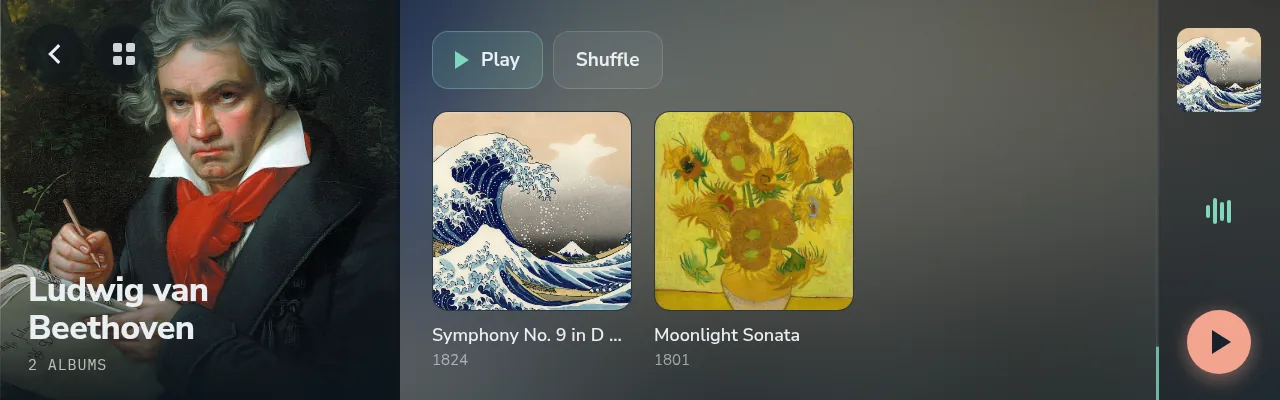
The same artist on the 7.9″ bar.
📚 The library views
Home opens on cards for your Lyrion library:
- Browse: three columns, artist, album and tracks. A tap on a row shows Play, Add to queue and +, for a playlist.
- Album Artists: every album artist with their portrait, grouped by letter, with a letter rail to jump.
- Playlists, New Music and Radio, Lyrion’s radio directory.
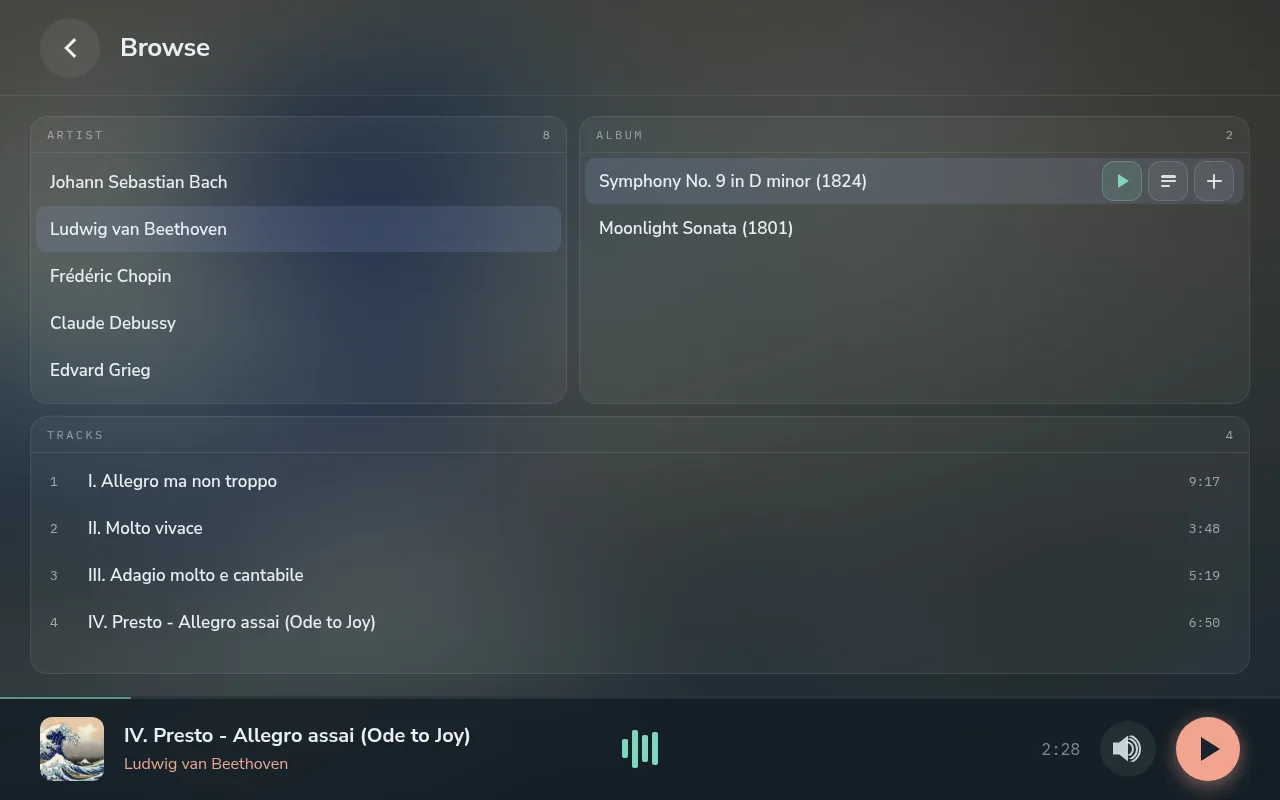
Browse: artist, album, tracks, with an album’s actions showing.
Switch on Extended navigation (Settings → Sources → Lyrion Client) and Home also gains My Music, Favourites and Apps. My Music holds Lyrion’s own views: composers, works, genres, years, the music folder, top tracks, and a search across artists, albums, works, songs and playlists at once.
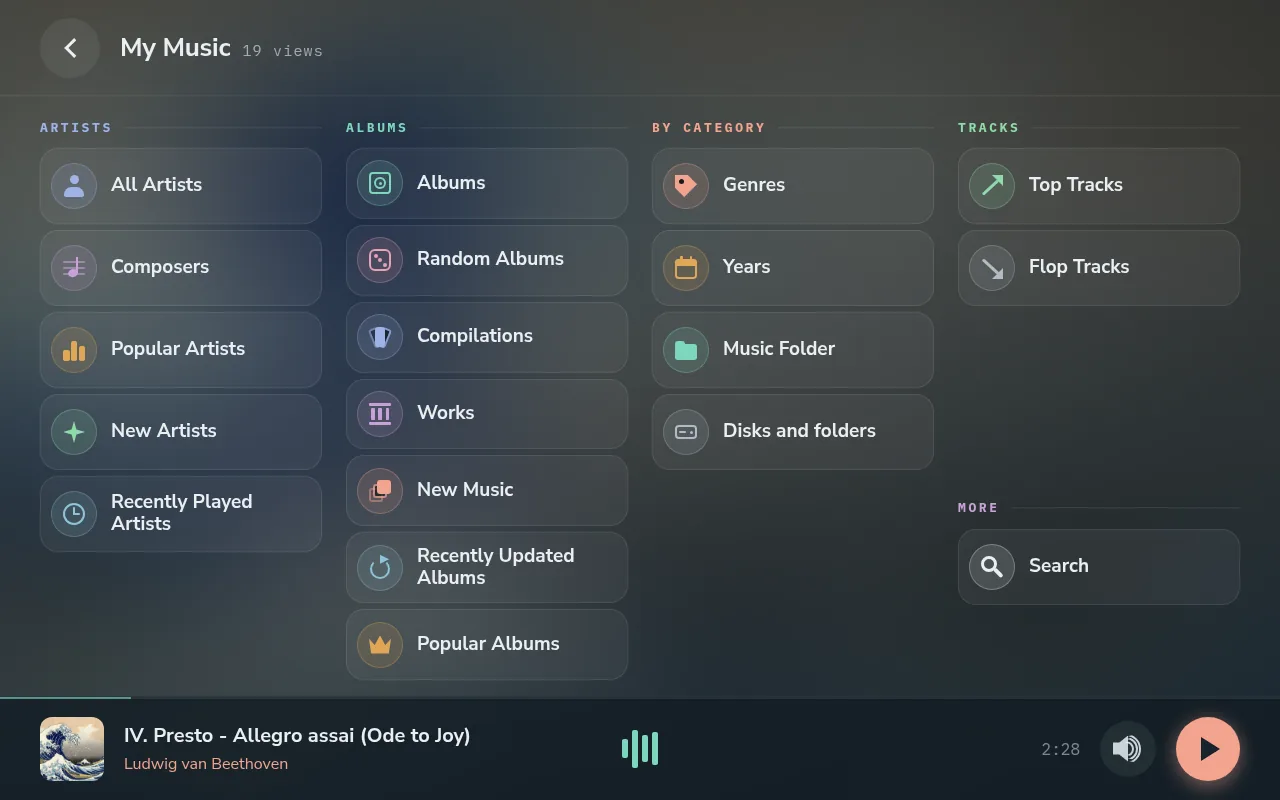
My Music, with Extended navigation on.
🌐 Where it comes from, and the small print
- Biographies from Wikipedia; album and artist details from MusicBrainz.
- Artist pictures from fanart.tv with a key of your own, then TheAudioDB; without a fanart.tv key, from the Lyrion server’s Music & Artist Information plugin, or initials where it is not installed. Find portraits and covers fills in the whole library in the background, without stopping the music.
- Missing covers for sources that send none, such as Bluetooth and radio, can be looked up too.
- Additive only. What the source sends is never overwritten. A match must be as sure as the Confidence threshold (90 % recommended); below it, nothing is shown rather than something wrong.
- Now Playing never waits for any of this: the track shows at once, and the extras arrive after.
- The card stays free. What is looked up is stored, but never more than a tenth of the card, nor so much that less than 2 GB stays free.
Comments
0